✓Booklet printing costs are primarily influenced by booklet size, page count, paper stock, binding method, and print quantity.
✓A5 booklets typically offer the best balance between affordability, usability, and professional presentation.
✓Larger formats, such as A4 landscape and A3, require more materials and generally cost more to produce.
✓Saddle-stitched booklets are usually the most cost-effective binding option, while perfect-bound and hardback formats increase production costs.
✓Digital printing is often the most economical choice for short-run booklet printing, whereas lithographic printing delivers better value for larger quantities.
✓Premium upgrades such as heavier paper stocks, hardback covers, lamination, foil blocking, and embossing increase booklet printing costs.
✓Bulk print runs reduce the cost per booklet by spreading setup and production expenses across more copies.
✓Careful planning of artwork, specifications, and print quantities can help avoid costly revisions, delays, and reprints.
Printing a booklet is often more complex than it first appears. The final cost depends on a series of production choices, from booklet size and paper stock to binding style and finishing options. A simple A5 brochure may be relatively inexpensive to produce, while a hardback catalogue with premium materials can cost significantly more.
These decisions affect far more than appearance.
Page count, colour printing, paper weight, binding method, and print quantity all influence production costs. Short digital print runs typically have a higher unit cost, whereas larger lithographic runs are often more economical. Premium finishes such as lamination, foil, and embossing can further increase the overall price.
Understanding what drives booklet printing costs makes it easier to budget effectively and avoid unnecessary expenses. This guide explores average booklet printing costs in the UK, the factors that influence pricing, and practical ways to achieve professional results without overspending.
The same booklet, specified two different ways, can differ in price several times over.
Average cost
What Is the Average Cost of Printing Booklets in the UK?
Booklet printing costs in the UK can range from under £1 per copy for simple short-run booklets to several pounds per unit for larger, premium publications.
The final price depends on factors such as booklet size, page count, paper stock, binding method, print quantity, and finishing options.
Average booklet printing costs for common booklet sizes
Booklet size has a direct impact on printing costs because it affects paper usage, ink coverage, and production efficiency. While exact prices vary by specification, the table below provides a general indication of booklet printing costs in the UK.
Booklet Size
Estimated Cost Per Booklet
A6
£0.30–£1.50
A5
£0.40–£2.50
A4 Landscape
£0.80–£4.00
A3
£2.00–£8.00+
Estimated costs vary depending on page count, quantity, paper stock, binding, and finishing requirements.
In general:
A6 booklet printing costs are typically lower because the compact format requires less paper and ink.
A5 booklet printing costs often provide the best balance between affordability and usability, making them popular for brochures, programmes, and promotional materials.
A4 landscape booklets cost more due to their larger print area and increased material requirements.
A3 booklet printing costs are usually the highest among standard booklet formats because of the larger sheet size and specialist production requirements.
Binding also affects pricing. Saddle-stitched booklets are generally the most economical option for lower page counts, while perfect-bound booklets command a higher price because of the additional production process and premium appearance.
Why Is It Difficult to Estimate Booklet Printing Costs?
Booklet printing prices can vary significantly because every project uses a different combination of specifications. Two booklets of the same size may have very different production costs depending on the materials, finishing options, and quantity ordered.
For example:
An A5 saddle-stitched booklet printed on standard silk paper will cost considerably less than a perfect-bound booklet using premium textured stock.
Switching from standard paper to a heavier premium stock can noticeably increase costs on larger print runs.
Adding finishes such as lamination, foil blocking, or embossing introduces additional production stages and expenses.
Because multiple factors influence pricing simultaneously, most printers provide bespoke quotations based on the exact booklet specification. Comparing options before placing an order can help identify the most cost-effective solution for your project.
Cost drivers
What Drives the Cost of Printing Booklets?
Booklet printing costs depend on the specifications you choose. Size, page count, paper stock, colour printing, binding, and finishing all affect the final price.
Larger formats, premium materials, and complex finishes increase production costs, while simpler specifications and higher print quantities usually reduce the cost per booklet.
01
How booklet size affects printing costs
Booklet size directly affects paper usage, ink coverage, and production efficiency. Larger formats cost more because they require more materials and can increase finishing and binding costs. An A4 booklet will almost always cost more to print than an A5 booklet with the same specifications.
A6 booklets are compact and cost-effective for programmes, zines, and small guides.
A5 booklets balance affordability with usability, making them popular for brochures and catalogues.
A4 booklets provide more design space but require more paper and higher production costs.
If budget is a priority, choosing a smaller booklet format can significantly reduce printing costs without affecting content quality.
02
How page count changes booklet pricing
Page count is one of the biggest cost drivers in booklet printing. More pages increase paper usage, ink consumption, and binding requirements, which raises the overall production cost.
Booklets are printed using folded sheets, so page counts must usually be divisible by four. Adding unnecessary pages increases costs quickly, especially for larger print runs. Keeping layouts efficient and removing excess content helps reduce booklet printing costs while maintaining readability and design quality.
03
How paper stock and GSM influence booklet printing costs
Paper stock affects both the look of your booklet and its printing cost. GSM, which stands for grams per square metre, is a measurement used to describe paper weight. In simple terms, the higher the GSM, the thicker and heavier the paper feels.
For example, a booklet printed on lightweight paper is usually cheaper to produce than one printed on a thicker, premium stock. Heavier papers are often used for covers because they feel more durable and create a higher-quality finish, but they also increase material and binding costs.
Paper finishes can also affect pricing. Common options include:
Gloss paper, which creates a shiny finish and makes colours appear more vibrant
Silk paper, which offers a smooth finish with less shine
Uncoated paper, which has a natural texture and is often used for a more premium or tactile feel
Choosing the right paper stock comes down to balancing appearance, durability, and budget. A thicker paper may improve the perceived quality of a booklet, but it can also increase production costs, particularly for larger print runs.
04
Why colour printing increases booklet costs
Full-colour booklet printing costs more because it uses additional ink, longer production processes, and stricter colour calibration. Booklets printed in CMYK require four colour layers, which increases printing complexity compared to black-and-white printing.
Colour printing is often essential for brochures, catalogues, and marketing materials because it improves visual impact and presentation quality. However, using colour selectively, such as printing only the cover in colour, can help reduce production costs without losing visual appeal.
05
How booklet binding impacts final pricing
Binding affects both the appearance and production cost of a booklet. Simpler binding methods are cheaper and faster to produce, while premium bindings require additional materials and manufacturing processes.
Saddle-stitched binding is one of the most cost-effective options for brochures, programmes, catalogues, and magazines with lower page counts. It uses folded pages secured with staples along the spine.
Perfect binding creates a flat glued spine similar to a paperback book. It provides a more professional finish for thicker booklets but costs more than saddle stitching.
Hardback binding is the most expensive option because it uses rigid covers and additional production processes. It is typically chosen for premium publications, portfolios, and high-end print projects.
06
How turnaround times affect booklet printing costs
Production schedules can influence booklet printing costs, particularly when tight deadlines are involved. Standard turnaround times are usually the most cost-effective option, while expedited production often incurs additional charges.
Costs may increase when:
Priority production is required
Same-day or next-day printing is requested
Additional staffing or press time is needed
Special delivery arrangements are required
Planning booklet printing in advance can help businesses avoid rush fees and keep production costs under control.
Binding is one of the biggest single levers on the price of a booklet.
Formats
How Much Does Different Booklet Printing Formats Cost?
Booklet format affects printing costs because larger sizes require more paper, ink, and finishing resources.
While exact pricing varies by specification, understanding the relative cost differences between common booklet sizes can help you choose the most cost-effective format for your project.
How much more does it cost to move up a booklet size?
As the booklet size increases, so do the material and production costs. Larger formats require more paper, greater ink coverage, and often additional finishing resources.
For example:
Moving from A6 to A5 typically results in a modest increase in production costs.
Moving from A5 to A4 usually has a greater impact because of increased paper and ink usage.
A3 booklets often attract the highest production costs due to larger sheet sizes, specialist handling, and additional finishing requirements.
Even when page counts remain the same, larger formats generally cost more to produce because every page consumes more materials.
Which booklet format offers the best value?
For most businesses, A5 booklets provide the best balance of cost, usability, and presentation quality. They offer enough space for detailed content while keeping production costs relatively affordable.
If minimising costs is the main objective, A6 booklets are usually the most economical option. However, for brochures, catalogues, and marketing materials, A5 often delivers better overall value by combining professional presentation with cost-effective production.
Larger formats such as A4 landscape and A3 are typically chosen when visual impact, imagery, or detailed layouts are more important than minimising printing costs.
A5 remains the sweet spot for most business booklets.
Quantity
How Do Printing Quantities Affect Booklet Printing Costs?
Print quantity has a major impact on booklet printing costs because setup expenses are shared across the total number of copies produced.
Smaller print runs usually have a higher cost per booklet, while bulk printing lowers the unit price and improves overall production efficiency.
01
Why does short-run booklet printing cost more per unit
Short-run booklet printing costs more per copy because the same setup work is required regardless of quantity. File preparation, machine calibration, and print setup still take time, whether you print 10 booklets or 1,000.
Short-run printing often involves:
Higher cost per booklet
Limited economies of scale
Faster digital printing methods
Better flexibility for low-volume projects
Digital printing has made small booklet runs more affordable, but unit costs remain higher than bulk printing.
02
How bulk booklet printing reduces costs
Bulk booklet printing reduces the per-unit price because setup and production costs are spread over a larger quantity. Longer print runs also improve printing efficiency and reduce material waste during production.
Bulk printing benefits often include:
Lower cost per booklet
More efficient production processes
Consistent print quality across all copies
Reduced long-term reordering costs
For businesses that regularly print brochures, catalogues, or promotional materials, larger print runs are usually more cost-effective.
Booklet quantity pricing comparison table
The cost per booklet decreases as print quantities increase. Larger orders reduce unit pricing because setup and production costs are distributed across more copies.
Quantity
Estimated Total Cost
Estimated Cost Per Booklet
10
£30
£3.00
50
£60
£1.20
250
£150
£0.60
1000
£400
£0.40
Actual booklet printing costs vary depending on booklet size, page count, paper stock, binding method, and finishing specifications.
Digital vs litho
Which Printing Method Is More Cost-Effective for Booklets?
The most cost-effective printing method depends on your print quantity, turnaround requirements, and production goals.
Digital printing is generally more affordable for smaller orders, while lithographic printing becomes more economical as print volumes increase.
01
When is digital booklet printing the better option?
Digital printing produces booklets directly from a digital file without the need for printing plates. Lower setup costs and faster production make it a cost-effective choice for short-run printing projects.
Digital printing is typically best when:
Printing fewer than 500–1000 copies
Working to tight deadlines
Producing personalised or variable-data booklets
Making frequent design updates
Ordering short-run promotional materials
For lower-volume orders, digital printing usually offers the lowest overall production cost and the fastest turnaround times.
02
When does lithographic booklet printing become more cost-effective?
Lithographic printing uses custom printing plates, which increases setup costs. However, as print quantities grow, those setup costs are spread across more copies, reducing the cost per booklet.
Lithographic printing is often the better choice when:
Printing large quantities
Producing long-term marketing materials
Maintaining strict colour consistency
Using specialist paper stocks or premium finishes
Running large commercial print campaigns
For bulk booklet printing, lithographic production often delivers lower unit costs and greater cost efficiency.
Digital vs litho booklet printing comparison
Feature
Digital Printing
Lithographic Printing
Best For
Short and medium print runs
Large-volume print runs
Setup Costs
Lower
Higher
Turnaround Time
Faster
Longer
Personalisation
Easy
Limited
Cost Efficiency
Better for smaller quantities
Better for larger quantities
Colour Consistency
Very good
Excellent
Choosing the right printing method depends on the size and objectives of your project. For short-run booklets, digital printing is usually the most economical solution. For larger print runs, lithographic printing often provides better long-term value and lower production costs per booklet.
Premium printing
How Much Does Premium Booklet Printing Cost?
Premium booklet printing increases costs because it uses higher-quality materials, specialist finishes, and more complex production methods.
Upgrades such as hardback covers, thicker paper stocks, and custom finishes improve durability and presentation but also add additional manufacturing and finishing expenses.
1. Hardback booklet printing cost overview
Hardback booklet printing is one of the most expensive booklet production options because it involves rigid covers, stronger binding materials, and more labour-intensive assembly processes. These booklets are designed for durability, premium presentation, and long-term use.
Hardback booklet printing costs are usually higher due to:
Rigid board cover construction
More complex binding processes
Higher material and labour costs
Premium finishing requirements
Longer production times
Hardback booklets are commonly used for portfolios, commemorative publications, premium catalogues, and collector-quality print projects where presentation is a priority.
2. Premium paper upgrade costs
Premium paper stocks increase booklet printing costs because thicker and specialist papers are more expensive to source, print, and bind. Higher GSM papers also affect production handling and finishing requirements.
Premium paper upgrades often include:
Thicker cover stocks
Textured or uncoated papers
Recycled or speciality papers
Silk, gloss, or soft-touch finishes
Higher GSM inner pages
Upgrading paper stock can significantly improve print quality, durability, and perceived value, particularly for high-end marketing materials and branded publications.
3. Custom cover and finishing costs
Custom finishes improve the visual appearance and durability of a booklet but add extra production stages and material costs. Premium finishing options are commonly used to create a more professional and visually distinctive printed product.
Common premium booklet finishes include:
Gloss lamination
Matt lamination
Soft-touch lamination
Foil blocking
Embossing
Spot UV coating
These finishes are often used for presentation booklets, luxury brochures, and premium brand materials where visual impact and tactile quality are important.
Premium stock and finishing buy presence — at a price per copy.
Save money
How can you reduce your booklet printing costs?
Reducing booklet printing costs is not always about choosing the cheapest materials or specifications.
In many cases, the biggest savings come from planning your project correctly before production begins. Making informed decisions early can help you control costs without compromising print quality or presentation.
1
Prioritise the specifications that matter most
Not every booklet needs premium materials, specialist finishes, or high-end binding. Before requesting quotes, identify which elements genuinely add value to your project and which can be simplified without affecting the reader experience.
Consider:
Whether premium finishes are necessary
If a standard format can achieve the same goal
Which design features directly support the booklet’s purpose
Whether durability or presentation is the higher priority
Focusing your budget on the most important features helps prevent unnecessary production costs.
2
Plan print requirements in advance
Last-minute changes can increase printing costs through artwork revisions, production delays, and rush turnaround charges. Establishing specifications early allows printers to recommend the most efficient production method and pricing structure.
Good planning includes:
Confirming final artwork before production
Setting realistic delivery deadlines
Defining print quantities accurately
Reviewing proofs carefully before approval
The fewer changes required during production, the lower the risk of unexpected costs.
3
Compare printing options before ordering
Booklet printing prices can vary significantly between suppliers depending on equipment, production methods, and service levels. Comparing multiple quotations helps identify the best value rather than simply the lowest price.
When comparing printers, review:
Print quality standards
Included finishing options
Turnaround times
Delivery charges
Artwork support and proofing services
A slightly higher upfront quote can sometimes deliver better long-term value if it reduces the risk of errors, delays, or reprints.
4
Work with experienced booklet printers
Production mistakes often cost more than the savings achieved by choosing the cheapest supplier. Experienced printers can recommend suitable specifications, identify potential issues before printing, and help optimise production costs.
Professional guidance can help businesses make informed decisions, avoid unnecessary expenses, and achieve the best possible balance between budget, print quality, and project objectives.
How Can Ex Why Zed Help Manage Booklet Printing Costs?
Keeping booklet printing costs under control is not just about choosing cheaper materials. It is about making the right production decisions from the start. Ex Why Zed helps businesses, publishers, designers, and creative brands produce professional booklets while avoiding unnecessary expenses, production delays, and costly print mistakes.
Why choose Ex Why Zed?
✓Specialist expertise in short-run and large-volume booklet printing
✓Fast turnaround options for time-sensitive print projects
✓Support from experienced print specialists throughout production
✓Guidance on booklet sizes, paper stocks, binding methods, and finishes
✓Help prepare print-ready artwork and file setup
✓Digital and lithographic printing solutions tailored to project requirements
✓High-quality colour reproduction and print consistency
✓Transparent pricing with no unnecessary production costs
✓Assistance in identifying cost-saving opportunities without compromising quality
✓Reduced risk of artwork errors, reprints, and production delays
Whether you are producing brochures, catalogues, magazines, zines, portfolios, or branded publications, Ex Why Zed helps simplify the printing process and ensures your budget is invested where it delivers the greatest impact.
With expert production guidance and dedicated print support, businesses can achieve professional booklet printing while avoiding costly mistakes and keeping production costs under control.
Booklet printing costs are influenced by every production decision, from booklet size and page count to paper stock, binding, stapled booklets, print quantity, and finishing options. Smaller formats, standard paper stocks, and efficient print quantities usually provide the best balance between affordability and professional print quality.
Understanding what drives booklet printing costs helps businesses avoid unnecessary production expenses and choose specifications that match their budget and project goals. Whether you need short-run digital booklets or premium hardback publications, careful print planning and the right production choices can significantly improve both cost efficiency and final print quality.
FAQ
Frequently Asked Questions
Yes. Most booklet printers offer instant online quotes based on your booklet size, page count, paper stock, binding type, including Wiro binding, print quantity, and finishing options. Adjusting specifications updates the estimated printing cost in real time.
Yes. Digital printing offers a cost-effective solution for low-quantity booklet printing due to its lower setup costs and faster production times. Smaller A5 or A6 saddle-stitched booklets give you plenty of space and are usually the most affordable options for short print runs.
Cheap booklet printing delivery in the UK usually takes between 2 and 7 working days, depending on the print quantity, binding method, finishing options, and your preferred delivery date. Express turnaround services are often available for urgent short-run booklet printing orders.
Some booklet printing companies offer free UK delivery, particularly on larger orders or standard turnaround services. However, once you add items to your shopping cart, you’ll be able to see delivery costs at the checkout, as they can vary depending on print quantity, booklet size, production speed, and courier requirements.
Booklet printing prices are affected by booklet size, the number of pages, paper stock, colour printing, binding type, print quantity, and finishing options, including how single pages are presented. Premium materials, larger formats, and custom finishes increase production costs, while bulk printing usually lowers the cost per booklet.
Online booklet printing is often cheaper for short and medium print runs because digital production and automated ordering systems reduce overhead costs for newsletters. Local print shops may charge more, but they can offer personalised support, print consultations, and faster local collection options.
Booklet printing in the UK can cost anywhere from under £1 per copy for simple short-run booklets to several pounds per unit for premium formats, including options for a quality front cover. If you order before 2pm, you can get it next day. Pricing depends on booklet size, page count, paper stock, binding, print quantity, and finishing options.
Key Highlights
Turn simple ideas into sleek, printed booklets that look polished and ready to share.
Create eye-catching designs that make your booklet stand out from the very first page.
Get smooth, high-quality prints without the stress or guesswork of setup and formatting with Ex Why Zed.
Bring your booklet vision to life with steps that make printing simple and mistake-free.
Craft professional-looking booklets at home or in the office with minimal effort.
From layout to finish, turn your booklet project into something that feels truly premium.
Making a booklet sounds simple, right? But when it’s time to design, format, and print, things can get confusing. Pages flip the wrong way, text looks off, and printing costs can add up fast.
The good news? With the right steps and a few smart tips, you can make a booklet that looks neat and professional. From choosing paper to printing and binding, we’ll show you exactly how to make a booklet.
Before finalising the booklet printing process, it’s important to plan carefully. The right paper, binding, and layout choices help your booklet look polished and professional.
Ready to bring your idea to life? Keep reading to discover the key steps and expert tips for designing and printing a booklet that looks sharp, reads smoothly, and leaves a lasting impression.
What Are Booklets? Everything You Need to Know to Make Your Own Booklet
If you’ve ever wondered, what is a booklet? It is a tiny version of a book that helps you showcase content beautifully in just a few pages. Booklets are made by folding and binding a few pages together. Each page fits neatly to share information in a clean, simple way. People often use them for marketing, events, or small guides. They’re held together with staples or stitches, making them easy to flip through and carry around.
Booklets are a fun and practical way to share information, from event programs and recipe books to product catalogues and storybooks. The best part? You don’t need fancy tools or a design degree. You can make a professional-looking booklet at home with just the right method and a bit of patience.
Below are five simple and effective ways to create your own booklet, whether you’re designing digitally or using paper by hand.
1. How to Make a Booklet Using Adobe Acrobat Reader DC
If your booklet is already designed in a PDF format, Adobe Acrobat Reader DC is your best choice for professional printing. It automatically arranges and flips pages into the correct order so that when you fold them, everything lines up perfectly. It’s great for printing finished booklets, like eBooks, manuals, or event programs, without messing up the layout.
Quick steps:
Open your PDF: Launch Adobe Acrobat Reader DC and open the file you want to print.
Go to Print Settings: Click File → Print.
Choose Booklet Layout: Under “Page Sizing & Handling,” select Booklet.
Select Page Range: Keep it on “All” unless you want to print specific pages.
Pick Perfect Binding Option: Choose Booklet subset → Both sides if your printer supports duplex printing. Otherwise, print front sides first, then flip.
Check Orientation: Keep the binding on the left side for western-style reading.
Preview and Print: Double-check everything, then click Print.
Fold & Bind: Once printed, fold the pages in half carefully and staple along the center fold.
Creative Tip: If your booklet has many pages, use a long-arm stapler or mini binder clips for a neat, strong finish.
2. How to Make a Booklet in Microsoft Word (Windows)
Microsoft Word is perfect if you’re starting from scratch. It helps you set up pages, adjust margins, and print in a folded, booklet-friendly layout. Ideal for making event programs, company brochures, or personal journals. Word’s built-in “Book fold” option makes it super beginner-friendly.
Quick steps:
Start a New Document: Open Word and create a blank file.
Set the Layout: Go to Layout → Margins → Custom Margins.
Under Pages, select Book fold from the dropdown.
Choose Paper Size: Stick to A4 or Letter size for easier printing.
Adjust Margins: Keep enough space near the centre for folding.
Add Content: Type in your text, insert photos, or add tables and charts.
Design the Cover: Use a full-page image or large title font for a clean look.
Add Page Numbers: Go to Insert → Page Numbers for a professional touch.
Preview Your Work: Use File → Print → Preview to make sure everything looks right.
Save as PDF: This locks your design so it won’t shift during printing.
Print and Fold: Use double-sided printing, fold your pages in half, and staple neatly.
Creative Tip: Consider adding section headings, coloured backgrounds, and borders to make your booklet pop.
3. How to Make a Booklet in Microsoft Word (macOS)
If you’re using a Mac, you can still create a professional booklet in Microsoft Word for macOS. It’s slightly different in layout settings but just as easy. This method is the best fit for creative writers, teachers, and designers who prefer Apple devices.
Quick steps:
Open Word: Start a new blank document.
Set Up the Layout: Go to File → Page Setup → Layout → Multiple pages → Book fold.
Choose Paper Size: A4, A5, or custom size depending on your booklet type.
Adjust Margins: Make sure text doesn’t touch the fold area.
Add Text & Images: Keep each page balanced, short text, clean visuals.
Use SmartArt: Add simple charts or icons for visual appeal.
Preview Before Printing: Go to File → Print → Preview to check alignment.
Export as PDF: This keeps your design layout safe.
Print Double-Sided: Fold and staple down the centre line.
Creative Tip: Use slightly thicker paper (like 120gsm) for the cover, which makes your booklet feel premium.
4. How to Make a Booklet in Canva
Want your booklet to look amazing without design experience? Then Canva is your best friend. It’s an online tool packed with templates that make your booklet look professional and creative at the same time. This method is ideal for designing marketing booklets, portfolios, or lookbooks that need eye-catching visuals.
Quick steps:
Go to Canva: Visit canva.com and sign in.
Search Templates: Type “Booklet” or “Brochure” in the search bar.
Choose a Template: Pick one that matches your theme, minimalist, corporate, or artistic.
Customise It: Add your text, images, colours, and logos with simple drag-and-drop tools.
Use Consistent Fonts: Stick to 2–3 font styles for a clean layout.
Add Visuals: Use Canva’s free illustrations or upload your own.
Preview the Booklet: Click through pages to make sure spacing looks right.
Download Your Design: Click Download → PDF Print and select “Crop Marks & Bleed” if you plan to trim edges.
Print and Fold: Use a printer’s “Booklet” mode or have it printed at a local print shop.
Bind It: Staple, glue, or use binding clips, depending on your preferred finish.
Creative Tip: Add QR codes that link to your website or portfolio; it gives your booklet a modern, interactive touch.
5. How to Make a Booklet from Paper (Manual DIY Method)
If you don’t have design tools or just want something handmade, this method is for you! Making a booklet from paper is fun, relaxing, and perfect for kids, crafts, or journaling. It is also affordable, hands-on, and adds a personal, creative feel.
Quick steps:
Gather Your Supplies: Paper sheets (A4 or Letter), a ruler, scissors, and a stapler.
Stack and Fold: Place 4–6 sheets together and fold them in half. Press the fold with your ruler to make it sharp.
Cut If Needed: If your booklet is too thick, cut extra edges for a tidy finish.
Staple Along the Fold: Use 2–3 staples down the centre to hold the pages together.
Decorate the Cover: Draw, paint, or use stickers for a personal touch.
Label Pages: Number them or add doodles to keep it fun.
Trim Edges: Use scissors to make all sides of the paper even and avoid creases.
Enjoy Your Booklet: Use it as a mini scrapbook, zine, or event handout.
Creative Tip: Mix white paper with coloured or patterned sheets for a creative, layered look.
What Are the Necessary Steps to Follow Before Printing a Booklet?
Before finalising the booklet printing process, it’s important to plan carefully. The right paper, binding, and layout choices help your booklet look polished and professional. Here’s what to check before hitting “Print.”
1. Choose the Right Paper and Binding
Your paper and binding decide how your booklet feels and lasts. Choose glossy paper for images, matte for a soft look, or textured for premium results. For perfect binding, saddle stitch suits small booklets, while perfect or wire binding works best for thicker ones.
2. Prepare Content and Design
Organise your text, images, and layout before you print your own booklet. Keep your fonts, colours, and styles consistent for a clean look. Leave enough white space for readability and use clear headings or colour accents to guide readers easily through each section.
3. Plan Your Page Layout
Your page layout determines how the booklet folds and reads. Double-check page order, set safe margins, and include bleeds to avoid white edges. Adjust for “creep” in thicker booklets so that all pages stay aligned when folded.
4. Check for Printing Errors
Always preview your booklet print quality before making multiple copies. Print one test copy to check page order, colours, and alignment. This small step helps you catch mistakes early and reduce the cost of printing booklets.
5. Final Touches and Finishing
Once your design is perfect, choose finishing touches that match your purpose. Add a cover page, page numbers, or a short introduction. If possible, use slightly heavier paper for the cover to make it look more professional.
6. Export and Verify Print-Ready Files
Before sending your booklet to print, ensure your file is export-ready. Save your design as a high-resolution PDF using CMYK colour mode, not RGB, to maintain accurate print colours. Include bleed and crop marks to avoid trimming errors, and confirm all images are at least 300 DPI for sharp, professional results. Don’t forget to embed your fonts to prevent unexpected text changes.
Before finalising your order, double-check every detail. Ex Why Zed offers reliable, high-quality booklet printing that makes your project look polished and professional. Just upload your file or request a free quote to get your booklet professionally printed today.
How to Make Your Booklet Personalised?
A personalised booklet helps your readers feel more connected to your message. Personalisation doesn’t have to be complicated. It’s all about making the design and content match your purpose and audience. Here's how you can make your booklet personalised:
Add a Unique Cover Design: Your cover is the first thing people see. Add your logo, name, or event title. Pick colours that match your theme. Use textured or colored paper for a special touch.
Include Personal Messages: Write a short note or greeting. Say thank you or mention the event. This makes your booklet feel warm and personal.
Use Custom Photos and Graphics: Add real photos instead of stock images. Show people, places, or products that matter. Keep all images in the same style or tone.
Choose Fonts and Colours That Reflect Your Personality: Pick fonts that match your vibe, formal, fun, or bold. Use only two or three colours. It keeps your booklet clean and easy to read.
Add Interactive or Special Elements: Make your booklet fun to explore. Add QR codes for videos or websites. Use small doodles, quotes, or icons. Try shiny finishes like foil or embossing if printing professionally.
Mention Names or Custom Details: Add people’s names or special notes. It works well for weddings, events, or client booklets. This small detail makes everyone feel important.
End with a Personal Touch: Finish with a kind message. Add your contact info or a “Stay in touch!” line. It leaves a friendly final impression.
What Makes Ex Why Zed the Best Choice for Your Booklet Printing
Your booklet deserves more than basic printing; it deserves professional care. At Ex Why Zed, we blend creativity, precision, and quality to bring your ideas to life.
From paper selection to layout setup, our team works closely with you to ensure your booklet reflects your vision and brand.
Professional-grade printing with sharp, vibrant results
Personalised support from design to delivery
Flexible printing for both small and large projects
Expert advice on materials, finishes, and layout
Reliable customer service that actually listens
With Ex Why Zed, you don’t just print a booklet, you create something that leaves a lasting impression. Reach out to us today, and make your own booklet in your own terms.
Conclusion
Creating a booklet may seem hard, but once you understand what makes a good booklet, it becomes exciting. Every detail, from the cover design to the choice of paper, adds depth and meaning to your final product. It’s not just about printing pages; it’s about crafting a story your audience will connect with.
So, get creative, plan your design, and make your own booklet that stands out. With the right tools and professional guidance, your booklet can be as unique and professional as you imagine!
Frequently Asked Questions
What is the Ideal Page Count for a Booklet?
The ideal page count for a booklet is usually between 8 and 40 pages. It should be divisible by four for proper folding and binding. Ensuring a balanced, professional layout without blank or misplaced pages.
How Can I Ensure the Best Print Quality?
Use high-resolution images (300 DPI), choose quality paper, and set correct margins and bleeds. Always preview your design before printing. Use CMYK colour mode for accurate colour reproduction and sharp print results.
What are the Common Mistakes to Avoid While Printing a Booklet?
Avoid low-resolution images, incorrect page order, missing bleeds, and inconsistent margins. Double-check alignment, spelling, and colour settings before printing. Good paper choices for printing and no skipping test prints can also improve the final booklet quality.
How do I Print Special Symbols?
Use a font that supports the symbols you need and check character encoding before printing. If symbols appear incorrectly, convert text to outlines or embed fonts in your file to prevent display or print errors.
How to make a mini booklet?
Use one sheet of paper, fold it in half twice to create small pages, and cut a slit in the centre fold. Fold inward to form an 8-page mini booklet, perfect for notes or mini zines printing.
How to make an A4 booklet?
Open your document in Word or Acrobat and select “Booklet Layout” under print settings. Use A4 paper, print double-sided, and fold in the centre. Bind with staples or thread for a neat A5-sized booklet.
How to make a zine booklet at home?
Print your design on a single sheet, fold it twice, and cut the middle slit. Refold into a booklet shape. Add handwritten notes, collage art, or doodles for a creative, DIY zine-style finish.
How to make a mini booklet with 6 pages?
Cut paper into three equal sheets, fold them in half, and stack them. Staple or sew the fold to create a 6-page booklet. Use each page for short notes, sketches, or creative mini projects.
How to make a little booklet out of paper?
Take a few sheets of paper, fold them in half, and stack them evenly. Staple or glue along the fold to bind them together. Add a simple cover for a neat, handmade booklet.
Crucial Points to Act On
We need one PDF with the pages in reading order.
When the design is complete. export your Word file to PDF
You need to add an extra 3mm on each edge to help with trimming
Key Highlights
Microsoft Word offers built-in tools like the Book Fold layout to simplify booklet design and printing.
Setting up margins, gutters, and page order correctly ensures pages fold and align perfectly.
Adding consistent fonts, clear spacing, and visual dividers helps create a professional finish.
Previewing your layout and adjusting margins prevents misaligned or cut-off pages.
Saving your booklet as a PDF keeps formatting intact and ready for print.
Common issues such as blank pages or incorrect layouts can be fixed easily in Page Setup.
Printed booklets remain a versatile and effective format for manuals, catalogues, and programmes.
Once your file is ready, you can send it to Ex Why Zed for expert, high-quality printing.
You’ve spent hours designing your booklet. The layout looks perfect on screen, the content is ready, and you can already picture holding the printed version in your hands. But when it comes to actually printing it, things suddenly get confusing. The pages print out of order, the text runs too close to the fold, or worse, the entire layout shifts. Sound familiar?
Many people assume printing a booklet in Word will be simple, only to find it’s trickier than expected. Between page setup, margins, and double-sided printing, there are plenty of small details that can throw your project off if you don’t get them right. And when you’re aiming for a professional finish, whether it’s a company brochure, an event programme, or a personal project, those details matter.
The good news is that creating a well-formatted, print-ready booklet in Word isn’t complicated once you know the steps. In this guide, you’ll learn how to print booklet in Word from start to finish, including how to design, set up, and save it as a PDF ready to send to Ex Why Zed for professional printing.
Why Use Microsoft Word To Create And Print Booklets?
Most of us already have Microsoft Word on our computers, which makes it one of the easiest tools to use for creating a booklet. You can quickly set up your pages with features like the Book Fold layout and duplex printing, making printing a booklet in Word simple and accurate.
You can also add images, covers, headers, and footers to give your booklet a polished, professional look. When you’re happy with the design, simply export it as a PDF to keep your layout intact and ready for printing. If you’d like a high-quality finish, you can then send your file to Ex Why Zed for professional printing.
How To Set Up Booklet Layout In Microsoft Word?
Getting your booklet layout right from the start is crucial. Correct setup ensures your pages fold correctly and everything prints in the proper order.
Let’s go through the essential steps to set up your booklet layout in Word.
Step 1 – Open A New Document
Start by opening a new blank document in Word so you have a fresh page to build your booklet on. Next, set the page size according to the paper you will be using, such as A4 or Letter. This ensures your booklet will print at the correct dimensions and fold neatly.
Crucial Step - Add 3mm Bleed
We do need an extra 3mm around each edge to help with trimming. This is called 'bleed' If you have not printed anything before or set a file up for print then we understand 'bleed' will be a completely alien concept. Here is the video guide that will help you do it.
So, for example if you are printing an A5 booklet (210x148mm) then with the 3mm extra on each edge, the Word page needs to 216x154mm.
If you are printing a 210x210mm booklet, the Word page needs to be 216x216mm. For A4 booklets (297x210mm), you should set up the Word page as 303x216mm.
Step 2 – Choose The Total Number Of Pages
Before adding any content, decide how many pages your booklet will contain. A good rule of thumb is to have a total page count divisible by 4. This makes sure the pages align properly when folded and avoids any blank pages at the end.
Step 3 – Adjust Page Setup For Booklet Printing
Now it’s time to format your document for booklet printing. Go to Layout > Margins > Custom Margins. Under Multiple Pages, select Book Fold. This will automatically arrange your pages in the correct order for folding.
Next, adjust the Gutter to leave extra space for binding. This prevents text from getting too close to the fold. Finally, set the orientation to Landscape, which is essential for the booklet format to work properly.
Step 4 – Customise Margins And Paper Size
For a professional finish, tweak your inside and outside margins. This makes sure your content looks balanced on every page. Double-check your paper size under Layout > Size to match the sheets you plan to print on.
At this stage, your document is ready for content, and you’ve completed the main steps on how to print a booklet in Microsoft Word correctly.
Not sure which size works best for your project? Read our Guide to Booklet Sizes for Printing to find the perfect fit for your design and budget.
How to Design Your Booklet In Word?
Once your layout is set, it’s time to bring your booklet to life. Now we’ll look at how to add your text, images, page numbers, and create a professional cover, as well as organising your content effectively.
Step 5 – Add Text, Images And Page Numbers
Start by adding the main content of your booklet. Use Insert > Page Number to number your pages automatically, so readers can navigate easily. Apply Styles to headings and body text to keep your fonts consistent throughout the booklet.
Images can make your booklet more engaging. Insert them via Insert > Pictures, and adjust their size and position so they complement the text without crowding the page.
Step 6 – Create A Cover Page
The cover is the first thing readers see, so make it count. Use Insert > Cover Page for a ready-made template, or design one manually for a custom look. Include your title, logo, and background image to give your booklet a polished, professional appearance.
Step 7 – Organise Content Into Sections
For a structured booklet, use Section Breaks to separate chapters or different sections. This makes it easier to manage page layouts, headers, and footers.
Add Headers and Footers to include page numbers, titles, or other branding elements. This ensures your booklet feels cohesive and professionally formatted from start to finish.
How Can I Print A Booklet In Word?
Now comes the most important part: how do I print a booklet in Word? Before sending your booklet to the printer, it’s important to make sure everything looks just right. Taking a few minutes to preview and adjust your document can save you from misaligned pages or printing errors.
Step 8 – Preview The Booklet Layout
Start by going to File > Print > Preview. This allows you to see how your pages will appear once printed. Check carefully that odd and even pages are positioned correctly so your booklet will fold in the right order.
Step 9 – Set Print Margins And Clean Up Artefacts
Next, adjust your margins if needed, selecting Narrow to make sure the content fits neatly on the page. Take a moment to remove any formatting artefacts or extra blank spaces. Doing this now ensures your booklet looks clean and professional.
Step 10 – Choose The Correct Print Settings
Finally, choose the appropriate print settings. Select Booklet Printing in your printer settings, and make sure to choose Print on Both Sides (Flip Pages On Short Edge). Adjust the paper source if necessary to match your printer setup.
Once you have completed these steps, your booklet is now ready to be printed!
Looking for affordable printing options in the UK? Read our guide on cheap booklet printing UK to find out how to get great quality at a lower cost.
How To Save Your Word Booklet As A PDF?
Saving your booklet as a PDF is a great way to share it digitally or ensure it prints exactly as you intended. PDFs preserve your layout, fonts, and images, making your booklet look professional every time.
Step 11 – Export As PDF
Go to File > Save As > PDF. Before saving, select Options > Book Fold Printing to make sure the booklet layout is retained. Saving as a PDF is perfect for sharing with others or sending to a professional printer. It keeps your pages in order and ensures your design stays intact.
Step 12 – Double-Check Before Printing
Before sending your booklet to print, take a moment to review everything. Verify the margins, images, and page order to ensure nothing is out of place. Completing this step helps avoid errors and ensures a polished, professional booklet.
Once your PDF is ready, you can send it to Ex Why Zed for professional booklet printing. Request an instant quote to see how straightforward and efficient our printing process is.
Where Do You Commonly Use Printed Booklets?
Printed booklets are incredibly versatile and can be used for so many different purposes, both personal and professional. Some of the most common uses include:
Event Programmes: Set the tone for your event by outlining schedules, speakers, or performances in a format guests can easily follow and keep.
Training Manuals: Give employees or students structured guidance that’s easy to refer back to, whether in classrooms or on-site.
Activity Books: Engage children or learners with hands-on content like puzzles, colouring pages, or challenges they can complete offline.
Product Catalogues: Present your products or services clearly, helping customers browse and compare in a tactile, professional format.
Branded Magazines: Share company stories, interviews, and updates that strengthen brand identity and keep readers connected.
Staff Handbooks: Communicate policies, procedures, and workplace culture in a format that feels clear, consistent, and approachable.
Coffee Table Books: Showcase photography, design, or creative projects in a stylish format that invites people to pick it up and browse.
Newsletters: Keep your audience informed with updates and insights they can flip through at their own pace, making it a tangible break from the digital noise.
Whether for professional use or personal projects, printed booklets are a simple way to share information in an organised and visually appealing way.
What Are the Common Issues You Might Face When Printing Booklets In Word?
Even with careful setup, some issues can occur when printing a booklet in Word. Being aware of these common problems can save time and ensure a professional result.
Pages Out Of Order: This usually happens if the Book Fold settings are incorrect. Double-check that this option is selected in your page setup.
Blank Pages: Blank pages often appear when the total page count is not divisible by 4. Either adjust the number of pages or add filler content to correct this.
Margins Cut Off: If text or images are too close to the fold, increase the gutter width in your page setup to provide extra space.
PDF Layout Issues: When exporting to PDF, make sure Book Fold printing is selected. This keeps your layout intact and prevents pages from printing in the wrong order.
By addressing these issues before sending your PDF to Ex Why Zed for printing, you can ensure your booklet looks polished and professional.
How Can You Make Your Booklet Look More Professional? (4 Tips)
Creating a polished, professional booklet is about more than just getting the pages to print correctly. Here are some practical tips to make your booklet look its best:
Keep Fonts and Sizes Consistent: Use the same font family and size for headings and body text throughout your booklet. This makes your content easier to read and gives a cohesive, professional appearance.
Maintain White Space: Avoid crowding your pages. Leaving enough space around text and images improves readability and gives your booklet a clean, balanced look.
Add Borders or Dividers for Style: Simple visual elements like lines, borders, or section dividers can help organise content and make your booklet visually appealing.
Test Print a Few Pages First: Before printing the entire booklet, print a few sample pages. This allows you to check alignment, margins, and overall design, helping you avoid surprises in the final print.
Following these tips will make your booklet not only functional but visually professional. If you’d like expert guidance or help preparing your file for print, contactthe Ex Why Zed team today; we’re here to make sure your booklet turns out perfectly.
Conclusion
Designing and formatting your own booklet in a Word document is easier than most people think. Once you understand how to print a document as a booklet in Word, you can confidently create professional-looking programmes, manuals, or catalogues without needing complex design software.
If you’ve been wondering, can you print a booklet in Word, the answer is yes, and the steps you’ve followed in this guide show exactly how. Now that your booklet is designed and saved as a PDF, your next step is simple: send it to Ex Why Zed for professional booklet printing. We’ll ensure your hard work looks just as impressive on paper as it does on screen.
Frequently Asked Questions
How do I print a booklet in Word 2010?
Open your document and go to the File menu, then select Print. In the Print dialog box, under Page setup options, choose the Book fold option to arrange pages correctly. For the best results, print on both sides of the paper and select your preferred paper size.
How to print a 4 page booklet in Word?
To print a short, 4-page booklet, use the Book fold option in Page setup. This automatically arranges pages in order. Check your print setup to ensure double-sided printing is enabled, and preview before printing to avoid alignment issues.
How to print an A5 booklet in Word?
In Page setup options, choose A5 as your paper size and select the Book fold option. Printing an A5 booklet is ideal for small brochures or manuals. Ensure your printer is set to flip on the short edge for the best results.
How to print a booklet in Word 2007?
In Word 2007, go to the Page Layout tab, select Margins, then Custom Margins. Choose the Book fold option under Multiple Pages. Once complete, go to the File menu and print using duplex settings to print on both sides of the paper.
How to print a booklet in Word for Mac?
Open your document on a Mac, then select File > Page Setup. Under Layout, choose Book fold option. In Print setup, enable double-sided printing. This ensures both sides of the paper print correctly for a folded booklet.
Which Word templates are best for creating and printing booklets?
You can use any booklet template available in Microsoft Office or download one online. Templates designed for brochures, event programmes, or manuals work perfectly. They make layout design easier and ensure professional results for your writing project.
How to print to a booklet with correct page order?
Go to Page setup options and select Book fold option to automatically arrange pages in the right order. In your print setup, ensure duplex printing is enabled so both sides of the paper are used on each sheet of paper.
Can you create and print a booklet in Google Docs similar to Word?
Yes, but Google Docs doesn’t have a built-in book fold option like Word. You’ll need to adjust margins manually and export your document as a PDF. For the best results, use your printer’s print setup to print on both sides of the paper.
What Is Staple Binding?
➡️ Staple binding, or saddle stitching, folds sheets and secures them with staples through the spine for a quick, affordable booklet. It works best for magazines, zines, brochures, event programs, and manuals with 8–64 pages. However, saddle stitch is not possible for books with a hard cover, as the staple and folding method cannot properly secure rigid materials; it is designed for flexible paper stocks rather than hardcover binding.
➡️ It works best for magazines, zines, brochures, event programs, and manuals with 8–64 pages.
➡️ Required tools include paper, optional cardstock cover, stapler, staples, ruler, pencil, and a flat surface.
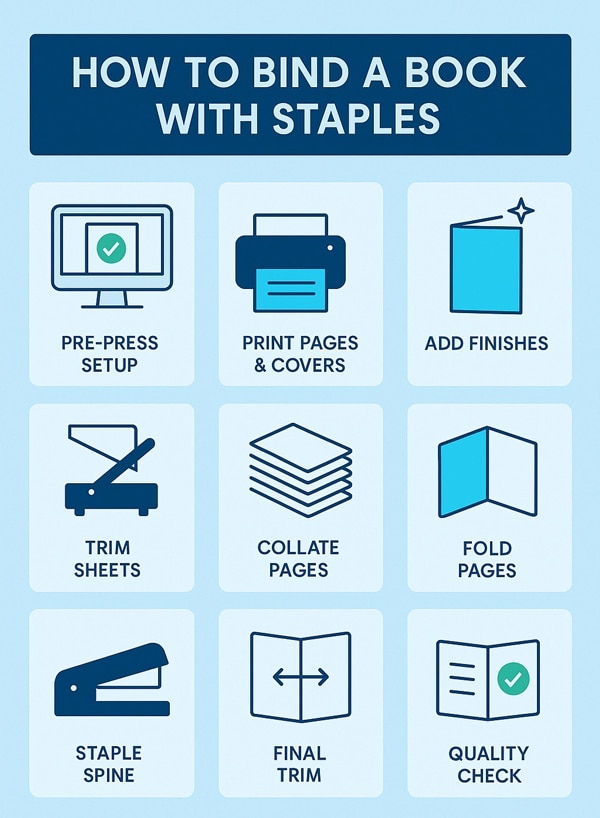
➡️ The process involves preparing print-ready files, printing, adding finishes, trimming, collating, folding, stapling, trimming edges, and final quality checks.
➡️ Staple binding is not suitable for thick books, as spines can bulge and pages may misalign.
➡️ Ex Why Zed produces sharp, professional stapled booklets with fast turnaround and flexible order sizes.
You don’t always need fancy tools or expensive techniques to make a booklet that looks great. Sometimes, a few staples are all it takes. Staple binding, also called saddle stitching, is one of the easiest ways to turn a stack of loose pages into something polished and professional.
You don’t always need fancy tools or expensive techniques to make a booklet that looks great. Sometimes, a few staples are all it takes. Staple binding, also called saddle stitching, is one of the easiest ways to turn a stack of loose pages into something polished and professional. However, saddle stitch binding is generally best suited for thin booklets with fewer pages, as staples may not securely hold very thick books. For thicker publications, other binding methods are usually recommended.
Whether you’re putting together a zine, a brochure, or a simple programme, this method is affordable, quick, and perfect for smaller projects. In this guide, we’ll walk you through how to staple bind a book, why it works, and why so many creators and businesses still love it.
Is Stapling the Same as Saddle Stitching?
Yes! Staple binding, often called saddle stitching, is a straightforward bookbinding technique. To create it, sheets of paper are folded in half, placed together over a “saddle” (a V-shaped holder), and fastened with staples through the crease. This secures the pages at the spine without the need for glue or complex machinery. However, staple binding is generally not suitable for books with a hard cover, as the method is designed for soft covers and thinner booklets. Hard covers are too rigid for staples to penetrate and do not allow the booklet to lay flat for stapling.
The method is named after the “saddle” used during production, not the staples themselves. Because the staples go right through the fold, the number of pages open easily and lie relatively flat, making it convenient for quick reference and casual reading.
Unlike perfect binding (which uses glue) or wire-o binding (which uses coils), staple binding is purely mechanical and fast to produce.
So, when you ask, what is the easiest way to bind a book? For small projects, staple binding is hands down the fastest and most efficient method.
What Are Staple Bound Books Best For (and Where Do They Fall Short)?
Because of its practicality, staple binding shows up in all sorts of everyday materials:
Magazines and comic books – Lightweight and easy to flip through.
Event programs and playbills – Compact handouts for concerts, plays, and community events.
Marketing catalogs and brochures – Perfect for showcasing products without overspending on production.
Instructional manuals and zines – Straightforward, functional, and easy to distribute.
The Limitations You Should Know:
The one major drawback of staple binding lies in the page count. Staples need to pierce through folded sheets, which means thickness quickly becomes an issue. Generally, this method works best for booklets of 8 to 64 pages, though the exact limit depends on paper weight. Push beyond that, and you’ll end up with:
Pages that stick out unevenly (known as “page creep”)
An overall unpolished, unprofessional look
In short, staple-bound booklets shine when used for smaller, concise projects. But when your content grows larger, it’s better to switch to sturdier binding options like perfect bound or wire-o.
What Tools Do You Need To Staple Bind A Book?
Before you begin, set out everything you’ll need. Staple binding doesn’t require special equipment, just a few basic supplies:
Paper – Regular printer paper works fine. Use thicker sheets if you want more durability.
Cover sheet (optional) – A piece of cardstock or heavy paper gives your booklet a more professional finish.
Stapler – A long reach stapler is easiest, but you can also use a regular stapler with a soft surface like cardboard underneath.
Staples – Standard ones are usually enough, but use longer staples if your booklet is thick.
Ruler and pencil – Helpful for marking even staple positions.
Flat surface – A sturdy desk or table keeps everything aligned while you work.
Once these are ready, you can move straight into the binding process.
How To Bind A Book With Staples Step by Step?
Staple binding might look straightforward from the outside, but each booklet goes through a carefully managed process to ensure it looks sharp, feels professional, and holds together securely. So, if you're looking for an easy way to bind your own book, here’s a clear breakdown:
1. Get Your Artwork Print-Ready (Pre-Press)
Every book starts long before it touches a press. In the pre-press stage, the design files are checked thoroughly by the print team. This isn’t just about catching typos, it’s about ensuring the file is technically correct for printing.
File checks: margins, bleed (the area that gets trimmed away), image resolution, and color settings.
Page sequencing: The pages are laid out into signatures, sets of four pages printed together on one sheet. This ensures that when the sheet is folded later, the pages appear in the correct reading order.
Proofing: Often, a digital or physical proof is created so you can see exactly how the booklet will look before the full run begins.
Many creators wonder, “How are stapled books printed?” This step makes sure everything is ready for production. This step is crucial. Also, if anything is wrong here, it will carry through the entire production process
2. Bring Designs To Life With High-Quality Printing
With the files approved, printing begins. Large sheets of paper are fed through advanced machines like nanographic, litho, or digital presses. These machines print multiple pages on one large sheet, imagine a giant poster with your booklet pages laid out like a puzzle.
Inner pages and covers are usually printed separately, unless you’re using the same stock for both (called “self-cover”).
Bulk efficiency: Printing on large press sheets makes the process more efficient, as many pages can be produced at once before being cut down.
Example: A 36-page booklet will be printed as 32 inside pages plus a 4-page cover. This stage is where your design transforms from a digital file into something tangible.
If you’re creating something more specialised, such as storybooks or educational booklets, you may want to explore different binding styles for children’s books to ensure the right balance of strength and presentation.
3. Add Finishes That Elevate the Look
Once the sheets are printed, they can be enhanced with finishes. These optional steps are about both function and style:
Lamination: A thin plastic film (matte, gloss, or soft-touch) is applied to the cover. This protects the print from wear and gives it a professional look.
Spot UV and Foil: Specialised finishing machines can apply glossy highlights (spot UV) or metallic foils to specific areas. This technique is perfect for titles, logos, or patterns that need to stand out.
Finishes make your booklet more durable, eye-catching, and suited for premium projects like event programmes or product catalogues.
4. Trim Sheets For A Smooth Binding Process
The large printed sheets are then trimmed down to a manageable size. At this stage, an extra margin (usually about 3mm) is left because the final trim happens after stapling.
This preliminary cut ensures the sheets fit smoothly into the binding machines without jamming, while still leaving room for adjustments later.
5. Collate Pages Into Perfect Order
This is where the booklet starts to take shape. In a collator machine, each section of the booklet is placed into its own bin. The machine pulls one sheet from each bin and stacks them in the correct order, just like dealing a perfectly ordered deck of cards.
Automation: Modern collators can handle high volumes quickly and accurately.
Accuracy: If one page is missed, the whole booklet is out of order, so quality checks are essential here.
By the end of this step, you have a complete set of pages stacked in the right sequence, ready to be folded.
6. Fold Neatly To Create The Booklet Shape
The stacked sheets are fed into a folder, where they are folded neatly in half down the centre. This fold creates the spine of the booklet.
Precision folding ensures the edges of the pages line up perfectly.
A poorly folded booklet can look uneven, with inner pages sticking out past the cover.
At this point, your project already resembles a booklet, but without binding, it’s still just a folded stack of paper.
7. Secure The Spine With Custom Staples
This is the stage that gives the method its name: saddle stitch. The folded booklets are placed on a saddle-shaped guide in the stitching machine.
Custom-made staples: Instead of using pre-cut staples, a continuous roll of wire is fed into the machine. Each staple is cut to the exact size needed, based on the booklet’s thickness and paper type.
Strong and secure: The staple is pushed through the folded spine, piercing all the pages, and then clinched tight inside the centrefold.
This process ensures that the staples grip firmly without damaging the paper, even if the booklet is relatively thick.
8. Trim The Edges For A Professional Finish
After stapling, the booklet is still slightly uneven at the edges. To finish, it goes through a three-knife trimmer:
The top, bottom, and outer edges are cut cleanly.
The spine is left untouched to preserve the staples.
This gives the booklet a sharp, professional finish with perfectly aligned pages.
9. Final Checks Before Your Booklets Ship
Before leaving the factory, every batch of booklets goes through a quality control stage. Here’s what’s checked:
Page order is correct
Images and text are aligned properly
Staples are secure and even
Final size matches the order specifications
Once approved, the booklets are carefully packed and prepared for shipping.
The Result: What you receive is a neat, lightweight, and professional booklet that’s easy to open, easy to distribute, and cost-effective to produce. Whether it’s a brochure, a magazine, or a catalogue, stapled binding offers the perfect balance of simplicity and quality.
Why Choose Ex Why Zed For Staple Binding?
At Ex Why Zed, we take pride in producing stapled booklets that are sharp, professional, and cost-effective. Whether you need a zine, brochure, catalogue, or event program, we’ll make sure every copy is finished to the highest standard.
Here’s what you can expect from us:
A wide choice of sizes, paper stocks, and finishes to match your vision
Premium printing quality with vibrant colours and crisp detail
Fast turnaround times to meet even the tightest deadlines
Eco-friendly materials and processes as part of our commitment to sustainability
Flexible options for both short runs and large orders
We combine expertise with care, so your booklets don’t just look good, they make a lasting impression.
Ready to get started? Get a Quote today and let’s bring your booklet project to life.
Final Words
At the end of the day, staple binding is proof that simple really can be effective. You don’t need complicated tools or expensive processes to create something that feels polished and professional. A few well-placed staples turn loose pages into a booklet that people can flip through, keep, and actually enjoy.
Whether it’s a zine, a programme, or a catalogue, there’s something satisfying about holding a finished booklet in your hands. It’s quick, budget-friendly, and still manages to make an impact, which is why it’s a go-to choice for so many creators and businesses alike.
Frequently Asked Questions
Can you staple normal paper together to make a notebook?
Yes, you can easily turn plain sheets into a simple notebook using staples. Fold the papers in half or stack them neatly, then secure them along the spine. It’s a quick and affordable method for personal use, school projects, or small booklets.
Are there any creative techniques for staple binding a book for a more professional look?
Absolutely. You can use coloured or oversized staples, add a cardstock or patterned cover, or reinforce the spine with decorative tape. Combining these touches gives a more polished appearance while keeping the process simple and fast.
How does staple binding compare to other bookbinding methods in terms of durability and appearance?
Staple binding is ideal for short booklets and quick projects because it’s fast and cost-effective. However, it’s less durable than glue-based perfect binding or spiral binding, and the spine may not look as sleek. For larger books, other methods are better suited.
Is there any way to permanently bind a perfect bound book?
Yes, perfect bound books are glued along the spine using a strong adhesive, creating a durable and long-lasting finish. Unlike stapled booklets, the pages are secured permanently, giving a clean, professional look for larger projects.
What is side staple binding?
Side staple binding secures pages by placing staples along the edge of a stack rather than the center fold. It’s often used for reports, handouts, or smaller documents where folding isn’t needed, keeping the pages together neatly and efficiently.
Can I staple bind thick books, or is it only for thin booklets?
Staple binding is best suited for thin booklets. Due to the limited reach of staples, this type of binding works best for a page count under 64 pages. For thicker books, other methods like glue or spiral binding are more appropriate.
How do I make sure the pages are aligned perfectly before stapling?
To ensure perfect alignment, hold your stack of sheets of paper and tap the top and side edges on a flat surface. You can also use a ruler to check for squareness. Using clips to hold the pages together during the book binding process helps maintain alignment.
Are there tips for using a regular stapler for book binding at home?
Yes! Open your regular stapler to lie flat. Place your pages on a soft surface like a folded towel, press the stapler down firmly over the spine, and then manually fold the staple ends flat on the inside using a bone folder or ruler.
Can I decorate or reinforce a staple-bound book for durability?
Absolutely. You can use decorative cardstock or even fabric for the paperback cover. To reinforce the spine, you can apply a strip of decorative book tape or washi tape over the staples on the outside, which adds both strength and a creative touch.
Can I staple bind a book with a hard cover?
While staple binding is a great choice for softcover books and smaller projects, it is generally not suitable for books with a hard cover. The thickness and rigidity of hard covers make it difficult for standard staplers to penetrate and securely hold the pages together. For hard cover books, other binding methods like case binding or perfect binding are typically recommended.
Print guides · Booklets
EEx Why Zed·12 min read·Updated July 2026
Key Highlights
✓Always set up your file in clear reading order from front cover to back cover, including any required blank pages.
✓You do not need to rearrange pages like 8–1 or 2–7; printers handle this automatically during production.
✓Export your file as a single-page PDF, not spreads, to ensure correct page arrangement during printing.
✓Make sure your page count matches your binding type, such as multiples of four for saddle stitch.
✓Add 3mm bleed to all edge-to-edge designs to avoid visible white edges after trimming.
✓With Ex Why Zed, your file is checked before printing, and page arrangement, imposition, and production are handled for you.
Have you ever wondered if your booklet pages are in the right order for printing? It is one of the most common points of confusion, especially when you start seeing page sequences like 8–1 or 2–7. Many assume they need to manually rearrange everything, and that is exactly where mistakes begin.
In reality, you do not need to rearrange the booklet pages yourself.
Printers automatically handle the imposition process, which places pages in the correct position for folding and binding. Understanding this is the key to learning how to arrange pages for booklet printing properly.
This guide explains the practical side of booklet setup, including page order, spreads vs single pages, bleed, binding requirements, and export settings, so your booklet is ready for print the first time.
Start here
Why Proper Page Arrangement Matters for Booklets?
Most booklet printing problems start with page setup. When learning how to arrange pages for booklet printing, many people assume they need to manually recreate layouts like 8–1 or 2–7. In reality, this is handled during production, so your focus should stay on keeping pages in the correct sequence from front cover to back cover.
A5 saddle stitched booklets printed at Ex Why Zed — page order is kept in reading order and imposed at production.
Why Printed Booklet Pages Look Out Of Order?
Booklets are produced using a process called imposition, where pages are positioned across larger print sheets before trimming and binding.
Because of this, the front cover may appear beside the back cover on the same sheet. While the layout can seem incorrect during printing, the pages fall into the proper order once the booklet is assembled and finished.
Why Manual Page Rearrangement Causes Problems?
Manually recreating printer spreads can disrupt alignment, trimming, and page positioning, especially when layouts continue across multiple pages. It can also interfere with automated pre-press workflows, leading to export corrections, production delays, and unnecessary reprints.
Keeping pages in normal reading order avoids these setup issues and ensures smoother printing.
Why Do Single Pages Work Better Than Spreads For Printing?
Before you decide how to arrange pages for booklet printing, one of the most important things to understand is the difference between spreads and single pages.
Design across the spread if it helps — but export the final PDF as single pages.
01
Spreads
A spread displays two facing pages side by side, similar to how a booklet looks when opened. This can be helpful during the design stage, especially for layouts that continue across both pages.
02
Single pages
Single pages display each page individually in sequence. This is the format printers expect when your file is exported for production.
What Goes Wrong When You Use Spreads Instead Of Single Pages?
The issue is not how you design the booklet, but how the file is exported.
When spreads are exported, pages are combined together instead of remaining as separate pages. This limits how the file can be processed during production and can create setup issues before printing begins.
It can also affect layouts that continue across pages, especially after trimming. In some cases, files exported as spreads are flagged during pre-press checks and need to be corrected before moving forward.
Spreads can still be useful during design, but the final export should always be set up as single pages.
🔍
Quick Check Before You Send Your File
Open your PDF and scroll through the document. If pages appear one at a time, your file is correctly exported. If two pages appear side by side, the file should be re-exported as single pages.
Keeping your export simple makes the print process much smoother and reduces the chances of file setup issues later.
Imposition explained
Do You Need To Rearrange Pages Like 8–1, 2–7?
It’s a common assumption. When you see page pairings like 8–1 or 2–7, it can seem like something you need to recreate in your file. In practice, this is handled during printing, so you don’t need to do this at all.
In booklet printing, multiple pages are placed on one large sheet of paper in a designated size in a specific layout. For an 8-page booklet, pages are positioned so that once the sheet is folded and trimmed, they fall into the correct reading order.
1
On the sheet
Page 8 and Page 1 are printed on the same side of the sheet.
Page 2 and Page 7 are printed on the reverse side.
2
After folding and trimming
Page 1 becomes the front cover.
Page 2 follows inside.
Page 8 becomes the back cover.
This arrangement is called imposition, and it ensures the booklet reads correctly once assembled.
Most tools, including Adobe Acrobat, can handle booklet formatting at the printing stage if needed. Your role is only to provide a clean, correctly ordered file.
How Does Page Arrangement Differ By Binding Type?
The binding type you choose directly impacts the page count requirements for your booklet, which is a key part of page arrangement. While you should always submit your pages in consecutive order, knowing the rules for your chosen binding type helps avoid delays.
For example, saddle stitch binding requires your total page count to be a multiple of four because it uses folded sheets. If your content lands at an odd number and doesn’t meet this number, you’ll need to add blank pages.
Other binding types offer more flexibility. Perfect bound, spiral binding, and wire-o binding work with pages in multiples of two. Your total page count absolutely affects how your booklet is prepared for printing, so it’s essential to get it right from the start.
Binding Type
Page Count Increment
Minimum Page Count
Saddle Stitch
Multiples of 4
8
Perfect Bound
Multiples of 2
28
Spiral Binding
Multiples of 2
8
Wire-O Binding
Multiples of 2
8
Page arrangement itself does not change with binding type, but page count rules do. Choosing the right binding early helps you avoid last-minute adjustments, such as adding blank pages, and ensures your booklet is print-ready without delays.
The workflow
How Do You Arrange Pages For Booklet Printing Step-By-Step?
If you want your booklet to print the first time correctly, the setup needs to be simple and consistent, as it often prints in a different order than expected. The goal is not to control printing layout, but to give the printer a clean, structured file they can process without adjustments.
1
Build Your Document In Sequence
Set up your booklet from front cover to back cover in the exact order it should be read.
Page 1: Front cover
Page 2: Inside front cover
Continue through all content pages
End with the inside back cover and the back cover
Even if some pages are blank, include them. Skipping pages breaks the structure and affects how the booklet is assembled.
2
Match The Final Trim Size
Your document size should match the final booklet size, such as A4 or A5. Setting this page size correctly from the start helps maintain consistent spacing, margins, and image placement throughout the file.
You can design using spreads if needed, but the final exported file should always be saved as single pages for printing.
3
Keep Bleed And Safe Margins In Place
Add 3mm bleed to any design elements that extend to the edge of the page. This helps prevent unwanted white edges after trimming.
Keep important text, logos, and page numbers safely within the margins so they are not positioned too close to the trim edge.
4
Export The File Correctly
When exporting your file, follow the correct settings for how to arrange pages for booklet printing PDF so the document is ready for production.
Avoid export settings that automatically create booklet layouts or printer spreads.
5
Review The PDF Before Submission
Before sending the file for your booklet design:
Scroll through the PDF page by page.
Confirm all pages appear in the correct sequence.
Check that no pages are missing or cropped.
Ensure images and layouts appear consistent throughout.
This step takes a few minutes but prevents delays later.
How To Set Up Your Booklet In Popular Tools
Setting up your booklet file correctly depends more on export settings than the tool you use.
Whether you are designing in InDesign, Affinity Publisher, Word, or Canva, the requirement remains the same: a single-page PDF in correct sequence. Avoid booklet or spread export options, as they interfere with printing. Each tool handles this differently, so following the right setup ensures your file is ready.
01
InDesign
When working out how to arrange pages for booklet printing in InDesign, the main focus should stay on clean page setup and correct export settings.
During setup:
Use parent pages and grids to maintain layout consistency across longer documents.
Set bleed, columns, and margins before placing images or text.
Keep linked images and fonts organised to avoid missing asset issues later.
During export:
Turn off the “Spreads” option before exporting.
Export as a print-ready PDF with embedded fonts.
Review the final PDF to confirm that pages appear individually.
InDesign offers strong control for professional booklet layouts, but the export settings need careful attention before submission.
02
Affinity Publisher
If you are learning how to arrange pages for booklet printing in Publisher, Affinity Publisher gives you strong layout flexibility while keeping the workflow less technical than traditional publishing software.
During setup:
Use master pages carefully to maintain layout consistency.
Optimise large image files to avoid slow exports and oversized PDFs.
Keep text styles and spacing organised across the document.
During export:
Select “All Pages” instead of “Spreads”.
Export the document as a PDF.
Review the final file to confirm alignment and page structure.
Affinity Publisher gives more flexibility for visual layouts while keeping the setup process relatively straightforward.
03
MS Word
When figuring out how to arrange pages for booklet printing, Microsoft Word works best for structured, text-focused booklet projects where readability matters more than complex visual layouts.
During setup:
Keep heading styles, spacing, and margins consistent throughout the document.
Watch for unexpected page shifts caused by images, tables, or manual spacing adjustments.
Avoid using automatic booklet or “Book Fold” layouts for professional printing.
During export:
Save the document as a PDF using “Save As” or “Export”.
Review page breaks and formatting carefully after export.
Confirm pages appear individually and in the correct sequence.
Word works well for simpler booklet layouts, but formatting consistency becomes increasingly important as page count grows.
04
Canva
Canva is commonly used to arrange pages for booklet printing online because the interface is simple to manage and requires minimal setup knowledge.
During setup:
Keep template edits consistent to avoid uneven spacing across pages.
Check alignment carefully after resizing or moving design elements.
Use high-resolution images to maintain print quality.
During export:
Select “PDF Print” before downloading.
Review the exported PDF for spacing and image quality.
Confirm pages export individually and in the correct order.
Canva simplifies the layout process, though it offers fewer advanced print and colour management controls than dedicated publishing software.
💡
Whichever tool you use
Most design tools allow you to define bleed when creating the document — set it before you start designing, not after.
Bleed
Why Do Printers Ask For 3mm Bleed (And What Happens If You Miss It?)
Bleed might seem like a small detail, but it makes a big difference once the booklet is trimmed. It is what ensures your booklet looks clean after trimming.
Edge-to-edge imagery only trims this cleanly when 3mm bleed is built into the artwork.
When booklets are printed, they are produced on larger sheets and then cut down to the final size. This cutting process is precise, but not perfectly exact. Even a slight shift during trimming can expose edges.
01
What 3mm Bleed Actually Does?
Bleed extends your design beyond the final page edge, usually by 3mm on all sides. This creates a buffer zone so that when the booklet is trimmed, the colour or image continues right to the edge.
Without bleed, your design stops exactly at the trim line, leaving no margin for error.
What Happens If You Do Not Include Bleed?
Thin white edges can appear along the sides of the page.
Full-page images may look slightly misaligned.
The final booklet loses its clean, professional finish.
These problems are especially noticeable on pages with background colours or images that are meant to run edge-to-edge.
02
What You Should Do Instead?
Extend all background colours, images, and design elements 3mm beyond the page edge during setup. Most design tools allow you to define bleed when creating the document.
Before exporting, ensure bleed is included in your PDF settings. This ensures the file is ready for trimming without additional adjustments.
Bleed is a small detail, but it has a direct impact on the final result. Including it from the start ensures your booklet prints cleanly, without visible edges or finishing issues.
What Should You Check Before Sending Your Booklet File?
A quick final check can prevent last-minute delays and ensure your booklet prints exactly as intended. This is less about design and more about confirming your file is structured correctly for production.
Run through this before you send your file
✓Single-page PDF: Make sure your file is exported as individual pages, not spreads.
✓Correct page order: The file should start with the front cover page and end with the back cover, ensuring the entire page order is maintained and including any blank inside pages.
✓Page count matches binding: Confirm your total pages align with your binding type, such as multiples of four for saddle stitch or perfect binding.
✓Bleed is included: Check that a 3mm bleed is added wherever content runs to the edge.
✓Images are print-ready: All images should be at least 300 DPI to avoid quality issues.
A structured file check ensures your booklet moves straight into production without adjustments. Taking a few minutes to verify these points gives you confidence that the final print will match your layout exactly.
What Happens After You Send Your File To Print At Ex Why Zed?
Once your file is submitted, it goes through a quick pre-press check to confirm everything is set up correctly, including page order, bleed, and overall file structure.
If anything needs adjusting, you will get clear guidance on what to fix. Once approved, the file moves into production, where page arrangement and printing are handled for you.
Ready To Print Your Booklet?
We like to keep it simple for you. Once your file is ready, everything else is handled for you, from file checks to final delivery.
Here’s what you can expect:
✓Send us a PDF, and we’ll handle the rest.
✓Stapled booklets are delivered in around 3 days.
✓Perfect-bound booklets in around 5 days.
✓Instant pricing for small runs (up to 20 copies).
✓Storage, fulfilment, and distribution support.
✓Friendly advice from real people, not automated replies.
✓Free file check before printing.
✓Free paper samples to help you choose the right finish.
Ready to print your booklet? Upload your file, get a free file check, and let Ex Why Zed handle everything from setup to delivery with fast turnaround and expert support.
Arranging pages for booklet printing, especially for a large booklet, is crucial for producing a professional and visually appealing final product. By understanding the nuances of single pages and spreads, the importance of binding types, and how to effectively use popular tools like InDesign or Canva, you can ensure your booklet stands out.
Additionally, keeping in mind essential aspects like bleed and common pitfalls can save you from headaches down the line. With this step-by-step guide, you’re now equipped to tackle your booklet printing project, including arranging the interior pages, with confidence. Happy printing, and remember, taking these steps can make all the difference in creating a polished and successful booklet!
FAQ
Frequently Asked Questions
Yes. Features like “Print Booklet” can automatically arrange PDF document pages across both sides of the paper during the printing process. Just ensure the number of pages and sheets of paper set up is correct before exporting.
Yes. Saddle stitching usually requires the maximum page count to follow multiples of four because pages are printed on folded sheets of paper. Other binding types often work in multiples of two, depending on the printing process.
Yes. Adobe Acrobat, Microsoft Publisher, and Canva can help manage booklet page numbering automatically. Using the correct default export setting reduces file problems and keeps reader spreads properly structured during the printing process.
Common file problems include exporting reader spreads instead of single pages, incorrect number of pages for saddle stitching, missing inside covers, and poor bleed setup. These issues can affect the binding edge, alignment, and overall print quality.
Create the document as a standard multi-page file with consistent formatting and spacing. Avoid the book fold layout or book fold layout setting, then export as PDF and review the first inside page, last page, and back side carefully.
Booklet page numbering should follow the normal reading sequence from front cover to back cover, with even page numbers placed appropriately. Consistent booklet page numbering helps maintain correct page order and ensures pages align properly after trimming and binding.