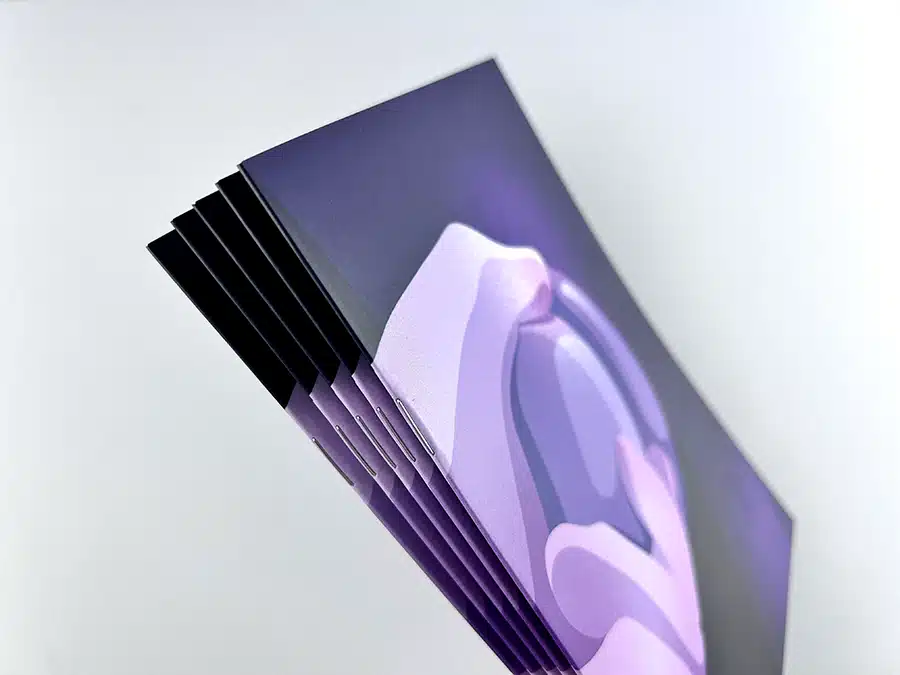
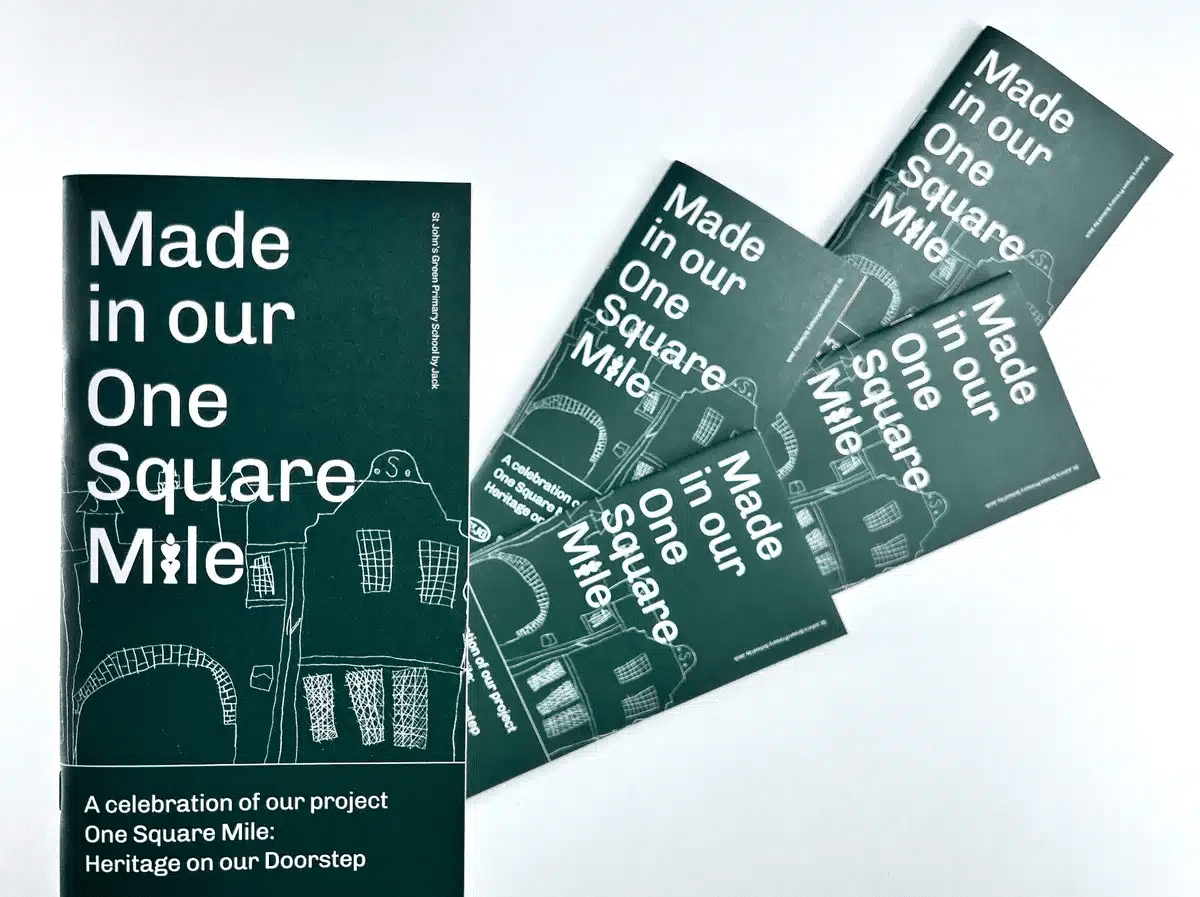
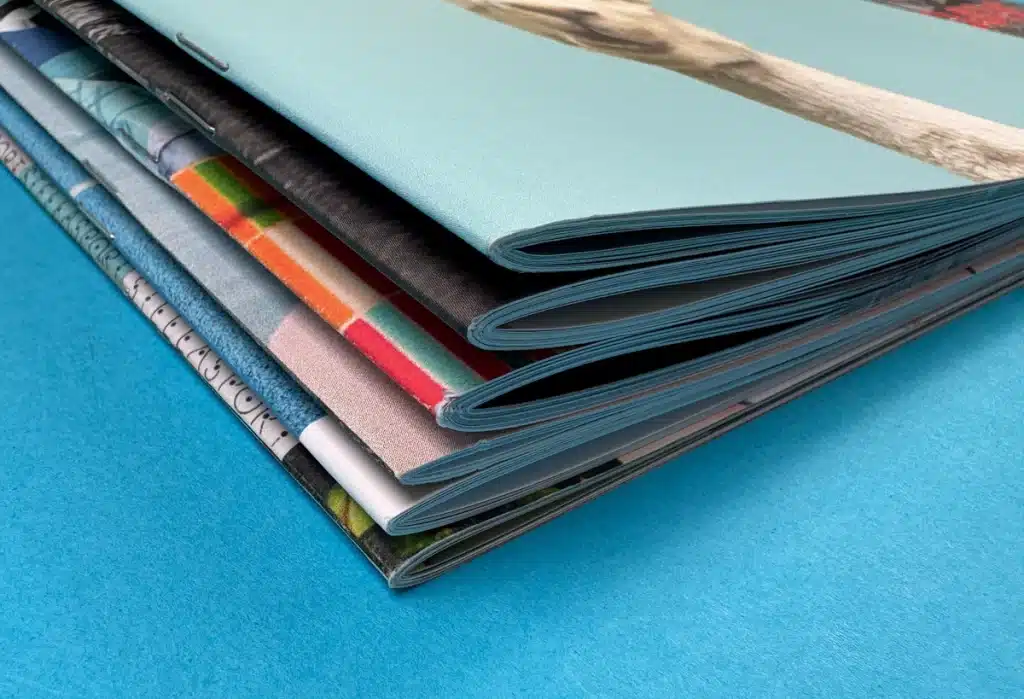
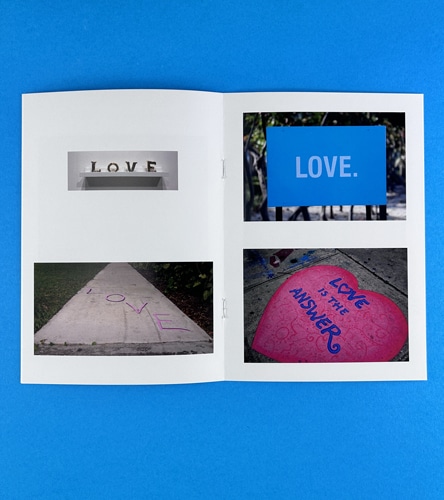
Saddle stitch binding is a cost-effective, efficient choice for small print runs.
The binding method uses folded sheets secured by wire staples along the central crease.
It works best for documents with fewer than 64 pages, such as brochures and comic books.
Saddle stitch binding offers a clean, professional look without the need for adhesives.
The process ensures quick turnaround times, making it ideal for urgent projects.
This method allows printed materials to lie flat, enhancing readability and usability.
Saddle stitch binding is perfect for budget-conscious creators needing fast, professional results.
Ex Why Zed offers expert guidance, quick turnaround, and eco-friendly materials for saddle stitch binding.
When it comes to printing projects, one of the biggest challenges is choosing the right binding method. You want your printed materials, whether it's a brochure, magazine, or event programme, to look polished and professional, but at a price that fits within your budget. The wrong binding choice can compromise the overall quality, or worse, exceed your project's financial limits.
Saddle stitch binding is often overlooked, yet it is one of the most cost-effective and functional binding methods. It's perfect for smaller page-count documents, providing a sleek finish without the high costs of other binding techniques. But understanding when saddle stitching is appropriate and how to get the best out of it can make all the difference in the final result.
This blog will break down everything you need to know about saddle stitch binding, from its benefits to the best use cases, helping you make the right choice for your project. Let's dive into why saddle stitch binding could be the smart solution you've been looking for!
What is Saddle Stitch Binding?
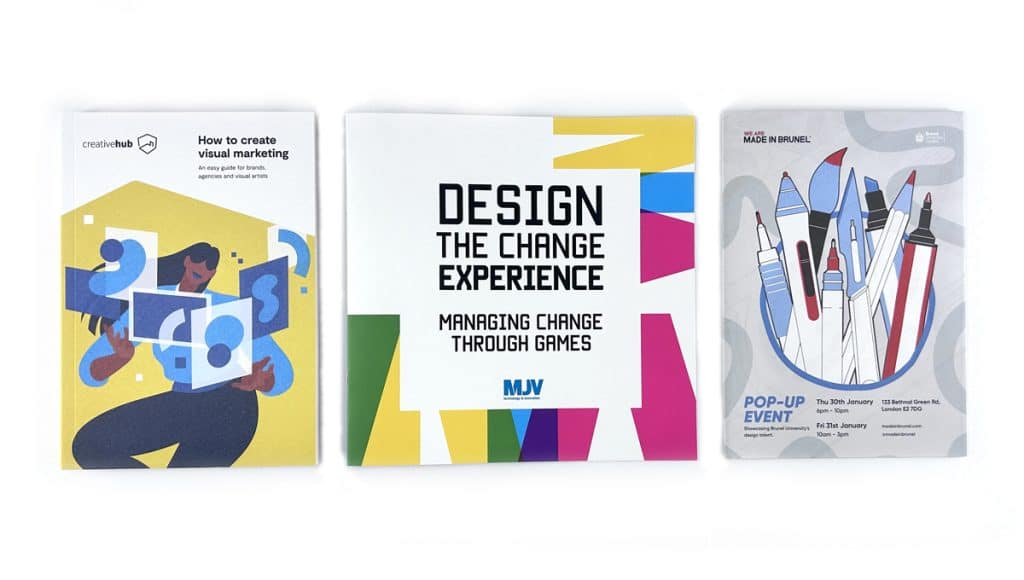
Saddle stitch binding is a simple yet effective method used to bind booklets, brochures, and other printed materials. It involves folding sheets of paper in half and stacking them inside one another, forming a booklet. The sheets are then stapled along the centrefold, creating a secure and neat spine.
The name "saddle stitch" comes from the way the folded sheets are placed over a saddle-like fixture during the binding process. Wire staples are then driven through the fold and clinched, ensuring the pages stay firmly in place. This method provides a clean, flat spine and allows the book to open fully, which is ideal for projects that require easy readability.
What is the Difference Between Saddle Stitch and Perfect Binding?
When deciding between saddle stitch and perfect binding, it's important to understand the distinct characteristics of each method. Both offer professional finishes, but they are better suited for different types of projects. The choice often depends on the document's page count, durability needs, and desired aesthetic.
To help clarify the differences, here's a comparison table:
Feature
Saddle Stitch Binding
Perfect Binding
Binding Process
Pages are folded and stapled along the centrefold.
Pages are stacked, glued along the spine, and attached to a flexible cover.
Best For
Small to medium-sized booklets with fewer pages.
Larger books, manuals, or catalogues with more pages.
Page Count
Suitable for 64 pages or fewer.
Ideal for documents with 40-60 pages or more.
Durability
Lightweight, but may not last as long with frequent use.
Offers stronger durability for long-term storage and handling.
Appearance
Simple, clean finish, but lacks a spine for printing.
Sleek, professional finish with a printable spine.
Cost
More cost-effective, especially for smaller runs.
Higher cost due to adhesive and additional steps.
What are the Advantages of Saddle Stitch Binding?
Saddle stitch binding is a simple, efficient, and affordable way to bind documents. Whether for business or personal use, this method offers a range of benefits that can suit many projects. Let's dive into the advantages of choosing saddle stitch binding.
Here are the main advantages:
Cost-Effective: Saddle stitch binding uses fewer materials and less labour, making it one of the most budget-friendly options available. This is especially advantageous for smaller print runs, where you can achieve professional results at a lower cost.
Quick Turnaround: The process is simple, which means projects are completed quickly. If you're working with a tight deadline, saddle stitch book binding is an excellent choice, offering faster production times compared to other methods.
Lightweight: Books and brochures bound with saddle stitch are lightweight, making them easy to handle, ship, and distribute. Whether you're printing event programmes or company brochures, this method ensures your printed materials are portable and user-friendly.
Professional Finish: Despite its simplicity, saddle stitch binding provides a clean and polished look, ideal for brochures, magazines, and small catalogues.
Flat Lay Opening: Saddle stitch binding ensures that your booklets lay nearly flat when opened, making them perfect for workbooks, manuals, or guides. This functionality is ideal for publications that require easy handling and readability, especially for instructional content.
Durability for Smaller Runs: While it's great for small to medium-sized runs, saddle stitch binding also provides lasting durability. With Ex Why Zed, you can trust that your short-run projects will withstand daily use without compromising on quality.
Ready to get started? Contact us today for a personalised quote and quick, professional saddle stitch binding for your next project!
What is the Maximum Page Limit for Saddle Stitch Binding?
When it comes to saddle stitch binding, the number of pages plays a crucial role in determining whether this method is suitable for your project. Saddle stitch is perfect for thinner booklets with fewer pages, typically ranging from 8 to 64 pages, depending on paper thickness.
However, as the page count increases past the saddle stitch binding maximum pages, the booklet may start to show signs of "creep," where the inner pages extend further out than the outer pages. This happens due to the folding process, which causes misalignment when too many pages are added.
What are the Essential Materials and Tools for Saddle Stitch Binding?
To create a successful saddle stitch binding, having the right materials and tools is crucial. Whether you're a beginner or experienced, choosing the right supplies ensures a smooth process and a professional final product. Let's take a look at the essentials.
Here's what you'll need:
Printed Sheets of Paper: The primary material required for saddle stitch binding is your printed sheets. You'll need to arrange and fold these sheets precisely to create your booklet. Always ensure you choose high-quality paper for the best results, such as the options available at Ex Why Zed.
Staples or Thread: For the binding itself, wire staples are the most common choice, but you can also use thread for a hand-bound finish. Wire staples are faster and more efficient, ideal for high-volume production, whereas sewing provides a handmade, artisanal touch.
Long-Arm Stapler or Stapling Machine: A long-arm stapler is essential for stapling the pages along the centre fold. Alternatively, for larger volumes, a stapling machine or booklet maker can save time and effort, delivering a consistent finish.
Bone Folder or Creasing Tool: A bone folder or creasing tool helps to fold the paper neatly and accurately, ensuring crisp, clean edges. This step is essential for creating a neat and professional-looking booklet.
Awl or Hole Punch: If you're using the sewing method instead of stapling, a small hole punch or awl will help create precise holes along the spine of the book. This tool is essential for hand-binding projects, ensuring the pages align properly.
Cover Material (Optional): If you're adding a cover to your project, select a durable material that complements your design. Ex Why Zed offers a variety of paper stocks, from standard to premium options, to give your booklets an extra touch of class.
How to Do Saddle Stitch Binding? A Step-by-Step Guide
Saddle stitch binding is a simple, cost-effective way to bind small to medium-sized booklets, magazines, and brochures. It's perfect for projects that require a quick turnaround and minimal equipment. Here's a step-by-step guide to help you get started.
Step 1: Prepare Your Pages and Cover
Arrange your pages in the correct order, folding each sheet in half to create a neat crease. If you're using a cover, fold it along with the interior pages to maintain alignment.
Step 2: Collate and Arrange
Once folded, stack your pages in the correct sequence, ensuring everything is aligned. Place the cover on top of the stack for a clean finish.
Step 3: Mark for Stapling or Sewing
Mark the spots where you'll staple or sew, ensuring they are evenly spaced along the spine. Use a ruler for accuracy and consistency.
Step 4: Staple or Sew the Pages
Use a long-arm stapler to staple through the centrefold or, for hand-binding, sew through the marked holes with strong thread. Make sure the binding is secure.
Step 5: Trim Excess Edges
Trim the edges of the booklet to ensure they are neat and even using a paper cutter or guillotine. This step is essential for a professional finish.
Step 6: Final Checks and Presentation
Inspect your finished booklet for any loose staples or uneven stitching, ensuring everything is securely bound. Your booklet is now ready for use or distribution!
For a professional, hassle-free finish, consider using Ex Why Zed's expert binding services. We'll ensure your project is completed with precision and speed. Contact us today to get started!
How Do You Get the Most Out of the Saddle Stitch Binding Method?
To get the best results from saddle stitch binding, planning and attention to detail are key. It's essential to think about page layout, paper thickness, and the overall finish. Here are some tips to help you maximise the effectiveness of the saddle stitch method:
Arrange Pages in Correct Order: Since saddle stitch binding uses folded sheets, ensuring the pages are in the correct sequence before folding is crucial to avoid confusion during assembly.
Use the Right Paper Weight: Choose a paper weight that fits the purpose of your booklet. Lighter weights (80gsm-120gsm) are best for smaller projects, while heavier weights (150gsm) work well for sturdier, more substantial booklets.
Ensure Precise Folding: A sharp, neat fold is key to a clean binding. Using a bone folder helps achieve a professional finish, ensuring that the pages align perfectly when folded.
Opt for Quality Staples: Strong, high-quality staples are essential for durability. Choose staples that can handle the thickness of your booklet to avoid breakage or loosening over time.
Test Before Final Print: Printing a test copy before committing to your full print run allows you to check the quality, design, and layout, ensuring the final product meets your expectations.
When you choose Ex Why Zed for your saddle stitch binding printing projects, you get expert support and premium materials. Order a test copy today to fine-tune every detail before committing to your full print run.
What Are the Common Applications of Saddle Stitch Binding?
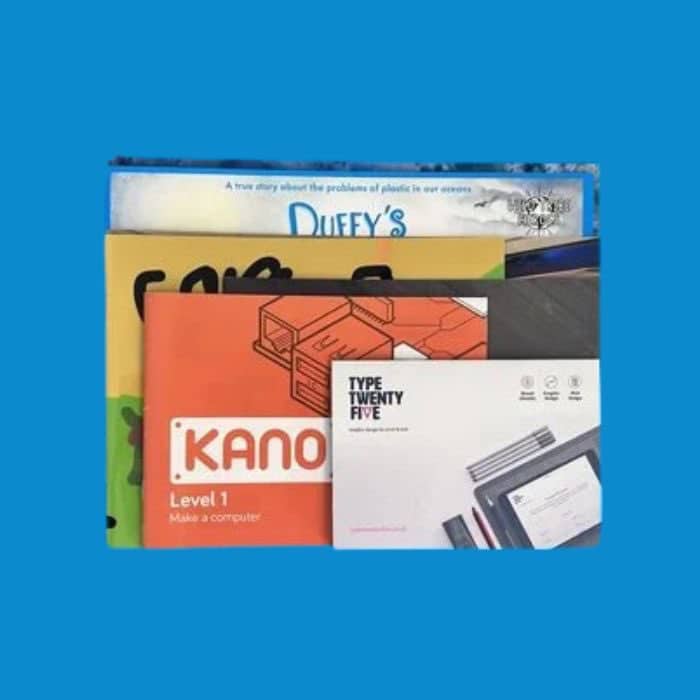
Saddle stitch binding is a versatile and popular booklet binding method, particularly suited for smaller publications. Its affordability and simple production process make it a go-to choice for various applications. Here's where saddle stitch binding is commonly used:
Brochures and Pamphlets: Ideal for marketing materials, saddle stitch binding keeps brochures compact and easy to distribute while allowing them to lay flat for easy reading.
Comic Books and Magazines: Perfect for publications that need to open flat, making it ideal for comic books and smaller magazines where a professional yet lightweight finish is desired.
Event Programs: Whether for weddings, conferences, or performances, saddle stitch binding provides a cost-effective solution for programs that need to be produced quickly and distributed easily.
Newsletters and Catalogues: This binding method is widely used for short-run newsletters and product catalogues that are easy to read and handle, often used in corporate and retail settings.
Manuals and Workbooks: Saddle stitch binding is an excellent choice for creating easy-to-use workbooks and instructional manuals, providing a practical solution for educational materials.
Need saddle stitch binding for your next project? Order with Ex Why Zed for fast, professional results at competitive prices.
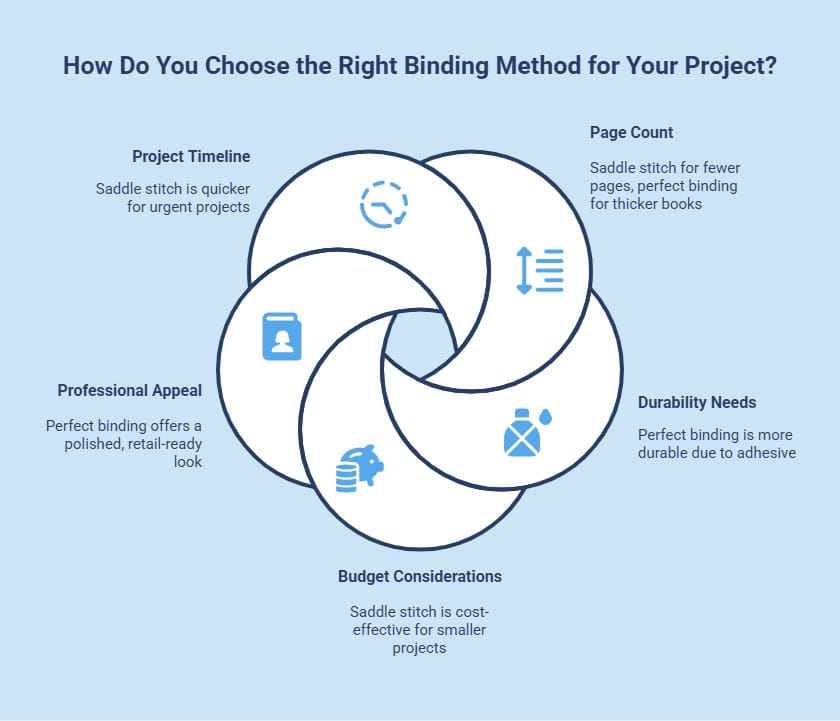
How Do You Choose the Right Binding Method for Your Project?
Selecting the right binding method is essential to ensure the final product aligns with your project's needs. The choice between saddle stitch, perfect binding, or other methods depends on various factors, such as page count, desired durability, and aesthetic appeal.
Here are key considerations to guide your decision:
Page Count: Saddle stitch binding is ideal for projects with 64 pages or fewer, while perfect binding is better suited for thicker books. For smaller, lighter projects, saddle stitching is a cost-effective solution.
Durability Needs: Perfect binding is typically more durable than saddle stitching due to the adhesive used to bind the pages together. If your project requires a long-lasting finish, perfect binding might be the better option.
Budget Considerations: If you're working within a budget, saddle stitch binding offers a low-cost alternative without compromising on quality. It's perfect for shorter runs and smaller projects like brochures or event programmes.
Professional Appeal: For books or catalogues that require a more polished, retail-ready look, perfect binding provides a sleek, professional finish with a printable spine. Saddle stitch is best for projects where functionality and affordability take precedence.
Project Timeline: Saddle stitch binding offers a quicker turnaround time, making it ideal for urgent projects. If you're on a tight deadline, the simplicity of the saddle stitch method can save time and ensure timely delivery.
For expert advice on choosing the best binding method for your project, Ex Why Zed can help you make the right choice based on your specific needs and requirements. Get in touch today!
Why Choose Ex Why Zed for Saddle Stitch Binding Solutions?
Ex Why Zed is your trusted partner for high-quality saddle stitch binding in the UK. With years of experience, we specialise in producing professional and durable booklets, brochures, and more, tailored to your exact needs.
We pride ourselves on our quick turnaround, with most orders ready in just 3 to 4 working days. Whether it's a small batch or a large order, we ensure timely and efficient delivery without compromising quality.
Customer satisfaction is our priority, and we offer a range of customisation options, from finishes to eco-friendly materials. Ready to bring your project to life? Contact Ex Why Zed today for a personalised quote!
Conclusion
Saddle stitch binding offers a perfect balance of affordability and professionalism for smaller print projects. Whether you're looking to produce brochures, event programmes, or comic books, this method ensures quick turnaround times and a clean, functional finish. Its simple yet effective process makes it the ideal choice for those on a budget without compromising quality.
Ready to bring your next project to life with saddle stitch binding? Take the first step towards creating your custom booklets by exploring your options today.
Frequently Asked Questions
Can saddle stitch binding be done at home by beginners?
Yes, saddle stitch binding is beginner-friendly. With minimal tools such as a long-arm stapler or needle and thread, you can create professional-looking booklets at home. Ex Why Zed also offers expert services for a polished finish.
Are there different methods to create saddle stitch binding?
Saddle stitch binding can be done with wire staples or hand-sewn thread. While staples provide a quick and efficient finish, sewing gives a more artisanal, handmade look. Both methods deliver a clean, functional result.
When should I choose saddle stitch binding over other methods?
Saddle stitch binding is ideal for projects under 64 pages. It's the most cost-effective binding method, making it a great choice for lightweight booklets like brochures, workbooks, or event programmes that need quick, budget-friendly production.
What types of book projects use Saddle Stitch Binding?
Saddle stitch binding is versatile and commonly used for smaller projects such as brochures, comic books, catalogues, event programmes, and newsletters. It offers a professional finish without the cost of more complex methods.
How to saddle stitch bind a book?
To saddle stitch bind a book, first fold your pages and align them. Then, staple along the crease using a long-arm stapler or sew with needle and thread. Trim excess edges for a neat finish, ensuring a clean, professional look.
What are the cons of saddle stitch binding?
Saddle stitch binding has page limitations, typically suitable for documents with fewer than 64 pages. It's not ideal for thicker publications, as it can cause "creep," making the booklet less neat and potentially weakening the spine.
Key Highlights
Turn simple ideas into sleek, printed booklets that look polished and ready to share.
Create eye-catching designs that make your booklet stand out from the very first page.
Get smooth, high-quality prints without the stress or guesswork of setup and formatting with Ex Why Zed.
Bring your booklet vision to life with steps that make printing simple and mistake-free.
Craft professional-looking booklets at home or in the office with minimal effort.
From layout to finish, turn your booklet project into something that feels truly premium.
Making a booklet sounds simple, right? But when it’s time to design, format, and print, things can get confusing. Pages flip the wrong way, text looks off, and printing costs can add up fast.
The good news? With the right steps and a few smart tips, you can make a booklet that looks neat and professional. From choosing paper to printing and binding, we’ll show you exactly how to make a booklet.
Before finalising the booklet printing process, it’s important to plan carefully. The right paper, binding, and layout choices help your booklet look polished and professional.
Ready to bring your idea to life? Keep reading to discover the key steps and expert tips for designing and printing a booklet that looks sharp, reads smoothly, and leaves a lasting impression.
What Are Booklets? Everything You Need to Know to Make Your Own Booklet
If you’ve ever wondered, what is a booklet? It is a tiny version of a book that helps you showcase content beautifully in just a few pages. Booklets are made by folding and binding a few pages together. Each page fits neatly to share information in a clean, simple way. People often use them for marketing, events, or small guides. They’re held together with staples or stitches, making them easy to flip through and carry around.
Booklets are a fun and practical way to share information, from event programs and recipe books to product catalogues and storybooks. The best part? You don’t need fancy tools or a design degree. You can make a professional-looking booklet at home with just the right method and a bit of patience.
Below are five simple and effective ways to create your own booklet, whether you’re designing digitally or using paper by hand.
1. How to Make a Booklet Using Adobe Acrobat Reader DC
If your booklet is already designed in a PDF format, Adobe Acrobat Reader DC is your best choice for professional printing. It automatically arranges and flips pages into the correct order so that when you fold them, everything lines up perfectly. It’s great for printing finished booklets, like eBooks, manuals, or event programs, without messing up the layout.
Quick steps:
Open your PDF: Launch Adobe Acrobat Reader DC and open the file you want to print.
Go to Print Settings: Click File → Print.
Choose Booklet Layout: Under “Page Sizing & Handling,” select Booklet.
Select Page Range: Keep it on “All” unless you want to print specific pages.
Pick Perfect Binding Option: Choose Booklet subset → Both sides if your printer supports duplex printing. Otherwise, print front sides first, then flip.
Check Orientation: Keep the binding on the left side for western-style reading.
Preview and Print: Double-check everything, then click Print.
Fold & Bind: Once printed, fold the pages in half carefully and staple along the center fold.
Creative Tip: If your booklet has many pages, use a long-arm stapler or mini binder clips for a neat, strong finish.
2. How to Make a Booklet in Microsoft Word (Windows)
Microsoft Word is perfect if you’re starting from scratch. It helps you set up pages, adjust margins, and print in a folded, booklet-friendly layout. Ideal for making event programs, company brochures, or personal journals. Word’s built-in “Book fold” option makes it super beginner-friendly.
Quick steps:
Start a New Document: Open Word and create a blank file.
Set the Layout: Go to Layout → Margins → Custom Margins.
Under Pages, select Book fold from the dropdown.
Choose Paper Size: Stick to A4 or Letter size for easier printing.
Adjust Margins: Keep enough space near the centre for folding.
Add Content: Type in your text, insert photos, or add tables and charts.
Design the Cover: Use a full-page image or large title font for a clean look.
Add Page Numbers: Go to Insert → Page Numbers for a professional touch.
Preview Your Work: Use File → Print → Preview to make sure everything looks right.
Save as PDF: This locks your design so it won’t shift during printing.
Print and Fold: Use double-sided printing, fold your pages in half, and staple neatly.
Creative Tip: Consider adding section headings, coloured backgrounds, and borders to make your booklet pop.
3. How to Make a Booklet in Microsoft Word (macOS)
If you’re using a Mac, you can still create a professional booklet in Microsoft Word for macOS. It’s slightly different in layout settings but just as easy. This method is the best fit for creative writers, teachers, and designers who prefer Apple devices.
Quick steps:
Open Word: Start a new blank document.
Set Up the Layout: Go to File → Page Setup → Layout → Multiple pages → Book fold.
Choose Paper Size: A4, A5, or custom size depending on your booklet type.
Adjust Margins: Make sure text doesn’t touch the fold area.
Add Text & Images: Keep each page balanced, short text, clean visuals.
Use SmartArt: Add simple charts or icons for visual appeal.
Preview Before Printing: Go to File → Print → Preview to check alignment.
Export as PDF: This keeps your design layout safe.
Print Double-Sided: Fold and staple down the centre line.
Creative Tip: Use slightly thicker paper (like 120gsm) for the cover, which makes your booklet feel premium.
4. How to Make a Booklet in Canva
Want your booklet to look amazing without design experience? Then Canva is your best friend. It’s an online tool packed with templates that make your booklet look professional and creative at the same time. This method is ideal for designing marketing booklets, portfolios, or lookbooks that need eye-catching visuals.
Quick steps:
Go to Canva: Visit canva.com and sign in.
Search Templates: Type “Booklet” or “Brochure” in the search bar.
Choose a Template: Pick one that matches your theme, minimalist, corporate, or artistic.
Customise It: Add your text, images, colours, and logos with simple drag-and-drop tools.
Use Consistent Fonts: Stick to 2–3 font styles for a clean layout.
Add Visuals: Use Canva’s free illustrations or upload your own.
Preview the Booklet: Click through pages to make sure spacing looks right.
Download Your Design: Click Download → PDF Print and select “Crop Marks & Bleed” if you plan to trim edges.
Print and Fold: Use a printer’s “Booklet” mode or have it printed at a local print shop.
Bind It: Staple, glue, or use binding clips, depending on your preferred finish.
Creative Tip: Add QR codes that link to your website or portfolio; it gives your booklet a modern, interactive touch.
5. How to Make a Booklet from Paper (Manual DIY Method)
If you don’t have design tools or just want something handmade, this method is for you! Making a booklet from paper is fun, relaxing, and perfect for kids, crafts, or journaling. It is also affordable, hands-on, and adds a personal, creative feel.
Quick steps:
Gather Your Supplies: Paper sheets (A4 or Letter), a ruler, scissors, and a stapler.
Stack and Fold: Place 4–6 sheets together and fold them in half. Press the fold with your ruler to make it sharp.
Cut If Needed: If your booklet is too thick, cut extra edges for a tidy finish.
Staple Along the Fold: Use 2–3 staples down the centre to hold the pages together.
Decorate the Cover: Draw, paint, or use stickers for a personal touch.
Label Pages: Number them or add doodles to keep it fun.
Trim Edges: Use scissors to make all sides of the paper even and avoid creases.
Enjoy Your Booklet: Use it as a mini scrapbook, zine, or event handout.
Creative Tip: Mix white paper with coloured or patterned sheets for a creative, layered look.
What Are the Necessary Steps to Follow Before Printing a Booklet?
Before finalising the booklet printing process, it’s important to plan carefully. The right paper, binding, and layout choices help your booklet look polished and professional. Here’s what to check before hitting “Print.”
1. Choose the Right Paper and Binding
Your paper and binding decide how your booklet feels and lasts. Choose glossy paper for images, matte for a soft look, or textured for premium results. For perfect binding, saddle stitch suits small booklets, while perfect or wire binding works best for thicker ones.
2. Prepare Content and Design
Organise your text, images, and layout before you print your own booklet. Keep your fonts, colours, and styles consistent for a clean look. Leave enough white space for readability and use clear headings or colour accents to guide readers easily through each section.
3. Plan Your Page Layout
Your page layout determines how the booklet folds and reads. Double-check page order, set safe margins, and include bleeds to avoid white edges. Adjust for “creep” in thicker booklets so that all pages stay aligned when folded.
4. Check for Printing Errors
Always preview your booklet print quality before making multiple copies. Print one test copy to check page order, colours, and alignment. This small step helps you catch mistakes early and reduce the cost of printing booklets.
5. Final Touches and Finishing
Once your design is perfect, choose finishing touches that match your purpose. Add a cover page, page numbers, or a short introduction. If possible, use slightly heavier paper for the cover to make it look more professional.
6. Export and Verify Print-Ready Files
Before sending your booklet to print, ensure your file is export-ready. Save your design as a high-resolution PDF using CMYK colour mode, not RGB, to maintain accurate print colours. Include bleed and crop marks to avoid trimming errors, and confirm all images are at least 300 DPI for sharp, professional results. Don’t forget to embed your fonts to prevent unexpected text changes.
Before finalising your order, double-check every detail. Ex Why Zed offers reliable, high-quality booklet printing that makes your project look polished and professional. Just upload your file or request a free quote to get your booklet professionally printed today.
How to Make Your Booklet Personalised?
A personalised booklet helps your readers feel more connected to your message. Personalisation doesn’t have to be complicated. It’s all about making the design and content match your purpose and audience. Here's how you can make your booklet personalised:
Add a Unique Cover Design: Your cover is the first thing people see. Add your logo, name, or event title. Pick colours that match your theme. Use textured or colored paper for a special touch.
Include Personal Messages: Write a short note or greeting. Say thank you or mention the event. This makes your booklet feel warm and personal.
Use Custom Photos and Graphics: Add real photos instead of stock images. Show people, places, or products that matter. Keep all images in the same style or tone.
Choose Fonts and Colours That Reflect Your Personality: Pick fonts that match your vibe, formal, fun, or bold. Use only two or three colours. It keeps your booklet clean and easy to read.
Add Interactive or Special Elements: Make your booklet fun to explore. Add QR codes for videos or websites. Use small doodles, quotes, or icons. Try shiny finishes like foil or embossing if printing professionally.
Mention Names or Custom Details: Add people’s names or special notes. It works well for weddings, events, or client booklets. This small detail makes everyone feel important.
End with a Personal Touch: Finish with a kind message. Add your contact info or a “Stay in touch!” line. It leaves a friendly final impression.
What Makes Ex Why Zed the Best Choice for Your Booklet Printing
Your booklet deserves more than basic printing; it deserves professional care. At Ex Why Zed, we blend creativity, precision, and quality to bring your ideas to life.
From paper selection to layout setup, our team works closely with you to ensure your booklet reflects your vision and brand.
Professional-grade printing with sharp, vibrant results
Personalised support from design to delivery
Flexible printing for both small and large projects
Expert advice on materials, finishes, and layout
Reliable customer service that actually listens
With Ex Why Zed, you don’t just print a booklet, you create something that leaves a lasting impression. Reach out to us today, and make your own booklet in your own terms.
Conclusion
Creating a booklet may seem hard, but once you understand what makes a good booklet, it becomes exciting. Every detail, from the cover design to the choice of paper, adds depth and meaning to your final product. It’s not just about printing pages; it’s about crafting a story your audience will connect with.
So, get creative, plan your design, and make your own booklet that stands out. With the right tools and professional guidance, your booklet can be as unique and professional as you imagine!
Frequently Asked Questions
What is the Ideal Page Count for a Booklet?
The ideal page count for a booklet is usually between 8 and 40 pages. It should be divisible by four for proper folding and binding. Ensuring a balanced, professional layout without blank or misplaced pages.
How Can I Ensure the Best Print Quality?
Use high-resolution images (300 DPI), choose quality paper, and set correct margins and bleeds. Always preview your design before printing. Use CMYK colour mode for accurate colour reproduction and sharp print results.
What are the Common Mistakes to Avoid While Printing a Booklet?
Avoid low-resolution images, incorrect page order, missing bleeds, and inconsistent margins. Double-check alignment, spelling, and colour settings before printing. Good paper choices for printing and no skipping test prints can also improve the final booklet quality.
How do I Print Special Symbols?
Use a font that supports the symbols you need and check character encoding before printing. If symbols appear incorrectly, convert text to outlines or embed fonts in your file to prevent display or print errors.
How to make a mini booklet?
Use one sheet of paper, fold it in half twice to create small pages, and cut a slit in the centre fold. Fold inward to form an 8-page mini booklet, perfect for notes or mini zines printing.
How to make an A4 booklet?
Open your document in Word or Acrobat and select “Booklet Layout” under print settings. Use A4 paper, print double-sided, and fold in the centre. Bind with staples or thread for a neat A5-sized booklet.
How to make a zine booklet at home?
Print your design on a single sheet, fold it twice, and cut the middle slit. Refold into a booklet shape. Add handwritten notes, collage art, or doodles for a creative, DIY zine-style finish.
How to make a mini booklet with 6 pages?
Cut paper into three equal sheets, fold them in half, and stack them. Staple or sew the fold to create a 6-page booklet. Use each page for short notes, sketches, or creative mini projects.
How to make a little booklet out of paper?
Take a few sheets of paper, fold them in half, and stack them evenly. Staple or glue along the fold to bind them together. Add a simple cover for a neat, handmade booklet.
Crucial Points to Act On
We need one PDF with the pages in reading order.
When the design is complete. export your Word file to PDF
You need to add an extra 3mm on each edge to help with trimming
Key Highlights
Microsoft Word offers built-in tools like the Book Fold layout to simplify booklet design and printing.
Setting up margins, gutters, and page order correctly ensures pages fold and align perfectly.
Adding consistent fonts, clear spacing, and visual dividers helps create a professional finish.
Previewing your layout and adjusting margins prevents misaligned or cut-off pages.
Saving your booklet as a PDF keeps formatting intact and ready for print.
Common issues such as blank pages or incorrect layouts can be fixed easily in Page Setup.
Printed booklets remain a versatile and effective format for manuals, catalogues, and programmes.
Once your file is ready, you can send it to Ex Why Zed for expert, high-quality printing.
You’ve spent hours designing your booklet. The layout looks perfect on screen, the content is ready, and you can already picture holding the printed version in your hands. But when it comes to actually printing it, things suddenly get confusing. The pages print out of order, the text runs too close to the fold, or worse, the entire layout shifts. Sound familiar?
Many people assume printing a booklet in Word will be simple, only to find it’s trickier than expected. Between page setup, margins, and double-sided printing, there are plenty of small details that can throw your project off if you don’t get them right. And when you’re aiming for a professional finish, whether it’s a company brochure, an event programme, or a personal project, those details matter.
The good news is that creating a well-formatted, print-ready booklet in Word isn’t complicated once you know the steps. In this guide, you’ll learn how to print booklet in Word from start to finish, including how to design, set up, and save it as a PDF ready to send to Ex Why Zed for professional printing.
Why Use Microsoft Word To Create And Print Booklets?
Most of us already have Microsoft Word on our computers, which makes it one of the easiest tools to use for creating a booklet. You can quickly set up your pages with features like the Book Fold layout and duplex printing, making printing a booklet in Word simple and accurate.
You can also add images, covers, headers, and footers to give your booklet a polished, professional look. When you’re happy with the design, simply export it as a PDF to keep your layout intact and ready for printing. If you’d like a high-quality finish, you can then send your file to Ex Why Zed for professional printing.
How To Set Up Booklet Layout In Microsoft Word?
Getting your booklet layout right from the start is crucial. Correct setup ensures your pages fold correctly and everything prints in the proper order.
Let’s go through the essential steps to set up your booklet layout in Word.
Step 1 – Open A New Document
Start by opening a new blank document in Word so you have a fresh page to build your booklet on. Next, set the page size according to the paper you will be using, such as A4 or Letter. This ensures your booklet will print at the correct dimensions and fold neatly.
Crucial Step - Add 3mm Bleed
We do need an extra 3mm around each edge to help with trimming. This is called 'bleed' If you have not printed anything before or set a file up for print then we understand 'bleed' will be a completely alien concept. Here is the video guide that will help you do it.
So, for example if you are printing an A5 booklet (210x148mm) then with the 3mm extra on each edge, the Word page needs to 216x154mm.
If you are printing a 210x210mm booklet, the Word page needs to be 216x216mm. For A4 booklets (297x210mm), you should set up the Word page as 303x216mm.
Step 2 – Choose The Total Number Of Pages
Before adding any content, decide how many pages your booklet will contain. A good rule of thumb is to have a total page count divisible by 4. This makes sure the pages align properly when folded and avoids any blank pages at the end.
Step 3 – Adjust Page Setup For Booklet Printing
Now it’s time to format your document for booklet printing. Go to Layout > Margins > Custom Margins. Under Multiple Pages, select Book Fold. This will automatically arrange your pages in the correct order for folding.
Next, adjust the Gutter to leave extra space for binding. This prevents text from getting too close to the fold. Finally, set the orientation to Landscape, which is essential for the booklet format to work properly.
Step 4 – Customise Margins And Paper Size
For a professional finish, tweak your inside and outside margins. This makes sure your content looks balanced on every page. Double-check your paper size under Layout > Size to match the sheets you plan to print on.
At this stage, your document is ready for content, and you’ve completed the main steps on how to print a booklet in Microsoft Word correctly.
Not sure which size works best for your project? Read our Guide to Booklet Sizes for Printing to find the perfect fit for your design and budget.
How to Design Your Booklet In Word?
Once your layout is set, it’s time to bring your booklet to life. Now we’ll look at how to add your text, images, page numbers, and create a professional cover, as well as organising your content effectively.
Step 5 – Add Text, Images And Page Numbers
Start by adding the main content of your booklet. Use Insert > Page Number to number your pages automatically, so readers can navigate easily. Apply Styles to headings and body text to keep your fonts consistent throughout the booklet.
Images can make your booklet more engaging. Insert them via Insert > Pictures, and adjust their size and position so they complement the text without crowding the page.
Step 6 – Create A Cover Page
The cover is the first thing readers see, so make it count. Use Insert > Cover Page for a ready-made template, or design one manually for a custom look. Include your title, logo, and background image to give your booklet a polished, professional appearance.
Step 7 – Organise Content Into Sections
For a structured booklet, use Section Breaks to separate chapters or different sections. This makes it easier to manage page layouts, headers, and footers.
Add Headers and Footers to include page numbers, titles, or other branding elements. This ensures your booklet feels cohesive and professionally formatted from start to finish.
How Can I Print A Booklet In Word?
Now comes the most important part: how do I print a booklet in Word? Before sending your booklet to the printer, it’s important to make sure everything looks just right. Taking a few minutes to preview and adjust your document can save you from misaligned pages or printing errors.
Step 8 – Preview The Booklet Layout
Start by going to File > Print > Preview. This allows you to see how your pages will appear once printed. Check carefully that odd and even pages are positioned correctly so your booklet will fold in the right order.
Step 9 – Set Print Margins And Clean Up Artefacts
Next, adjust your margins if needed, selecting Narrow to make sure the content fits neatly on the page. Take a moment to remove any formatting artefacts or extra blank spaces. Doing this now ensures your booklet looks clean and professional.
Step 10 – Choose The Correct Print Settings
Finally, choose the appropriate print settings. Select Booklet Printing in your printer settings, and make sure to choose Print on Both Sides (Flip Pages On Short Edge). Adjust the paper source if necessary to match your printer setup.
Once you have completed these steps, your booklet is now ready to be printed!
Looking for affordable printing options in the UK? Read our guide on cheap booklet printing UK to find out how to get great quality at a lower cost.
How To Save Your Word Booklet As A PDF?
Saving your booklet as a PDF is a great way to share it digitally or ensure it prints exactly as you intended. PDFs preserve your layout, fonts, and images, making your booklet look professional every time.
Step 11 – Export As PDF
Go to File > Save As > PDF. Before saving, select Options > Book Fold Printing to make sure the booklet layout is retained. Saving as a PDF is perfect for sharing with others or sending to a professional printer. It keeps your pages in order and ensures your design stays intact.
Step 12 – Double-Check Before Printing
Before sending your booklet to print, take a moment to review everything. Verify the margins, images, and page order to ensure nothing is out of place. Completing this step helps avoid errors and ensures a polished, professional booklet.
Once your PDF is ready, you can send it to Ex Why Zed for professional booklet printing. Request an instant quote to see how straightforward and efficient our printing process is.
Where Do You Commonly Use Printed Booklets?
Printed booklets are incredibly versatile and can be used for so many different purposes, both personal and professional. Some of the most common uses include:
Event Programmes: Set the tone for your event by outlining schedules, speakers, or performances in a format guests can easily follow and keep.
Training Manuals: Give employees or students structured guidance that’s easy to refer back to, whether in classrooms or on-site.
Activity Books: Engage children or learners with hands-on content like puzzles, colouring pages, or challenges they can complete offline.
Product Catalogues: Present your products or services clearly, helping customers browse and compare in a tactile, professional format.
Branded Magazines: Share company stories, interviews, and updates that strengthen brand identity and keep readers connected.
Staff Handbooks: Communicate policies, procedures, and workplace culture in a format that feels clear, consistent, and approachable.
Coffee Table Books: Showcase photography, design, or creative projects in a stylish format that invites people to pick it up and browse.
Newsletters: Keep your audience informed with updates and insights they can flip through at their own pace, making it a tangible break from the digital noise.
Whether for professional use or personal projects, printed booklets are a simple way to share information in an organised and visually appealing way.
What Are the Common Issues You Might Face When Printing Booklets In Word?
Even with careful setup, some issues can occur when printing a booklet in Word. Being aware of these common problems can save time and ensure a professional result.
Pages Out Of Order: This usually happens if the Book Fold settings are incorrect. Double-check that this option is selected in your page setup.
Blank Pages: Blank pages often appear when the total page count is not divisible by 4. Either adjust the number of pages or add filler content to correct this.
Margins Cut Off: If text or images are too close to the fold, increase the gutter width in your page setup to provide extra space.
PDF Layout Issues: When exporting to PDF, make sure Book Fold printing is selected. This keeps your layout intact and prevents pages from printing in the wrong order.
By addressing these issues before sending your PDF to Ex Why Zed for printing, you can ensure your booklet looks polished and professional.
How Can You Make Your Booklet Look More Professional? (4 Tips)
Creating a polished, professional booklet is about more than just getting the pages to print correctly. Here are some practical tips to make your booklet look its best:
Keep Fonts and Sizes Consistent: Use the same font family and size for headings and body text throughout your booklet. This makes your content easier to read and gives a cohesive, professional appearance.
Maintain White Space: Avoid crowding your pages. Leaving enough space around text and images improves readability and gives your booklet a clean, balanced look.
Add Borders or Dividers for Style: Simple visual elements like lines, borders, or section dividers can help organise content and make your booklet visually appealing.
Test Print a Few Pages First: Before printing the entire booklet, print a few sample pages. This allows you to check alignment, margins, and overall design, helping you avoid surprises in the final print.
Following these tips will make your booklet not only functional but visually professional. If you’d like expert guidance or help preparing your file for print, contactthe Ex Why Zed team today; we’re here to make sure your booklet turns out perfectly.
Conclusion
Designing and formatting your own booklet in a Word document is easier than most people think. Once you understand how to print a document as a booklet in Word, you can confidently create professional-looking programmes, manuals, or catalogues without needing complex design software.
If you’ve been wondering, can you print a booklet in Word, the answer is yes, and the steps you’ve followed in this guide show exactly how. Now that your booklet is designed and saved as a PDF, your next step is simple: send it to Ex Why Zed for professional booklet printing. We’ll ensure your hard work looks just as impressive on paper as it does on screen.
Frequently Asked Questions
How do I print a booklet in Word 2010?
Open your document and go to the File menu, then select Print. In the Print dialog box, under Page setup options, choose the Book fold option to arrange pages correctly. For the best results, print on both sides of the paper and select your preferred paper size.
How to print a 4 page booklet in Word?
To print a short, 4-page booklet, use the Book fold option in Page setup. This automatically arranges pages in order. Check your print setup to ensure double-sided printing is enabled, and preview before printing to avoid alignment issues.
How to print an A5 booklet in Word?
In Page setup options, choose A5 as your paper size and select the Book fold option. Printing an A5 booklet is ideal for small brochures or manuals. Ensure your printer is set to flip on the short edge for the best results.
How to print a booklet in Word 2007?
In Word 2007, go to the Page Layout tab, select Margins, then Custom Margins. Choose the Book fold option under Multiple Pages. Once complete, go to the File menu and print using duplex settings to print on both sides of the paper.
How to print a booklet in Word for Mac?
Open your document on a Mac, then select File > Page Setup. Under Layout, choose Book fold option. In Print setup, enable double-sided printing. This ensures both sides of the paper print correctly for a folded booklet.
Which Word templates are best for creating and printing booklets?
You can use any booklet template available in Microsoft Office or download one online. Templates designed for brochures, event programmes, or manuals work perfectly. They make layout design easier and ensure professional results for your writing project.
How to print to a booklet with correct page order?
Go to Page setup options and select Book fold option to automatically arrange pages in the right order. In your print setup, ensure duplex printing is enabled so both sides of the paper are used on each sheet of paper.
Can you create and print a booklet in Google Docs similar to Word?
Yes, but Google Docs doesn’t have a built-in book fold option like Word. You’ll need to adjust margins manually and export your document as a PDF. For the best results, use your printer’s print setup to print on both sides of the paper.
The fastest way to turn your PDF into a polished booklet is to let us handle the print – but if you’d like to test on your own printer first, our clear guides below have you covered.
Great, upload your PDF file along and our experts will give it a thorough preflight check. If we notice anything that needs changing, we'll let you know.
Excellent, we have step-by-step guides. We have clear instructions for printing your booklet from PDF in Acrobat, MS Publisher, InDesign and Affinity Publisher.
If you’re considering getting your PDF printed as a booklet professionally, here’s why we at Ex Why Zed stand out:
✅ Top-Quality Results
We’re print perfectionists. Your booklet will be handled by experts who specialise in short-run booklets, zines, and books. We ensure crisp text, vibrant images, and a clean finish that represents you or your brand beautifully.
⚠️ Our team double-checks every PDF so you get a result that a typical home printer just can’t match.
✅ Free UK Delivery
No one likes surprise costs. We offer free delivery on all orders UK-wide, so the price you’re quoted is the price you pay – no extras. Whether you’re in London, Manchester, or a small village, your printed booklets will arrive safely at your doorstep without any shipping fee.
✅ Easy Online Quotes & Ordering
Using our Printed Project Builder you can get an instant price for your booklet project. Just input your specs (size, page count, quantity, etc.) and see the price – or use our Booklet Printing product page for guidance on options. When you’re ready, you can upload your PDF using WeTransfer. It’s a smooth, hassle-free experience – no need to email large files or worry about FTP. (And of course, if you prefer a human touch, you can always email us or call – we’re here to help.)
✅ Guidance and Support
We’re not just a print shop; we’re your printing partners. If you have questions, need a template, or aren’t sure about something, check out our Resources like the File Set-Up Knowledge Base or just reach out. Our friendly team will guide you, as we genuinely want your project to succeed. Printing can be complex, but we make it simple by being available to assist at each step.
In short, we’re passionate about printing and we take pride in helping creators like you. Feel free to get a quote or ask us anything – even if you’re not ready to print just yet. We’re here to provide advice, reassurance, and of course, top-notch printing when you need it.
Introduction
Printing a PDF as a booklet can feel intimidating to first-timers. You might be worried about page order, margins not fitting, or how to print double-sided without messing up the layout. We get it – these concerns stop many budding authors and creators in their tracks. The good news is that turning your PDF into a real booklet is easier than it seems, and we’re here to walk you through it step by step.
At Ex Why Zed, we speak your language. We specialise in helping novice and self-publishers – from independent authors and artists to community groups and small businesses – get their PDF documents printed as professional booklets. In this guide, we’ll show you exactly how to print a booklet from a PDF. We’ll cover everything from setting up your PDF correctly, to using common software (Adobe Acrobat, Microsoft Publisher, Adobe InDesign, and Affinity Publisher) to arrange and print your pages in booklet format, and finally to double-checking technical details like margins, bleed, and printer settings. By the end, you’ll be confident that your booklet will look and feel right.
✅ Expert Tip If at any point you feel overwhelmed or simply prefer an expert to handle it, we’ve got you covered. All we need is your PDF file – send us your PDF and we’ll do the rest.
Which software is best for printing a PDF as a booklet?
You might be wondering what software or tools you can use to create a booklet from your PDF. The answer is: there are several options, from beginner-friendly to professional design programs. Below, we’ll go through four popular methods step-by-step:
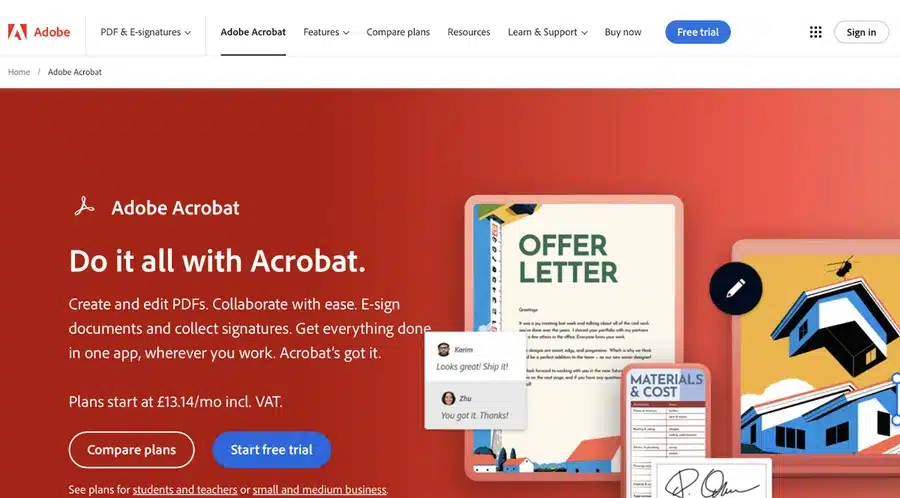
Adobe Acrobat or Reader Great for most users. Acrobat (including the free Adobe Reader) has a built-in booklet printing feature that simplifies the process.
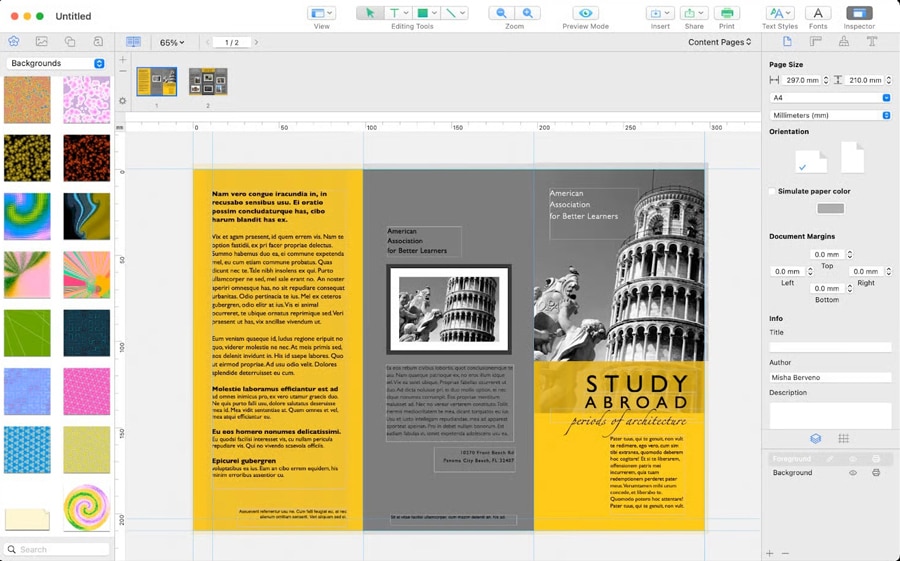
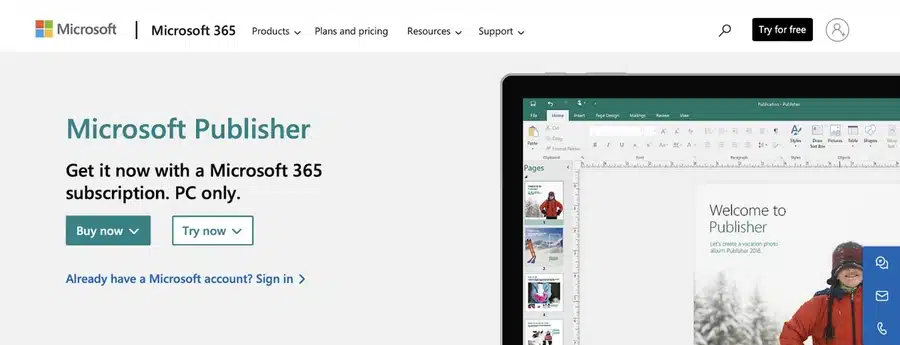
Microsoft Publisher Good for home office users. Publisher can import PDFs and arrange them into a booklet format.
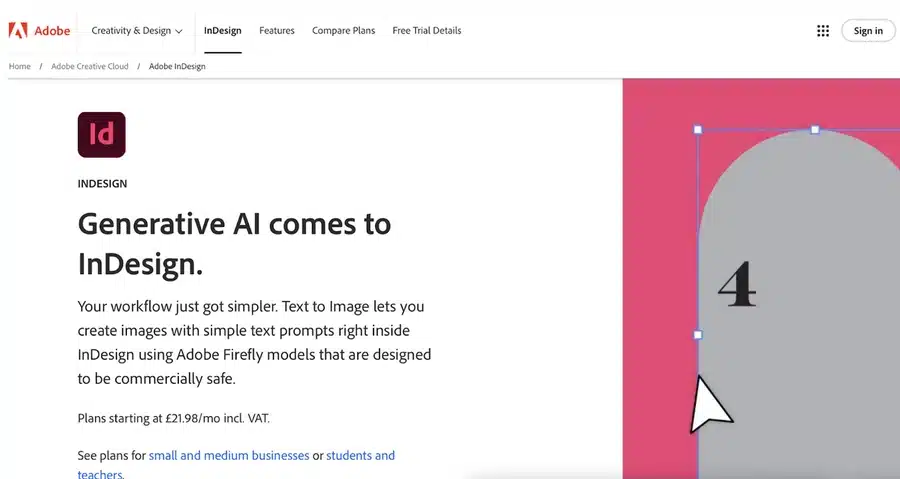
Adobe InDesign Advanced option for designers who want fine control over layout and typography.
Affinity Publisher Advanced and affordable alternative to InDesign, ideal for designers on a budget.
Scroll down to your program of choice ⬇️
1. Printing a PDF as a Booklet using Adobe Acrobat (or Adobe Reader)
Adobe Acrobat is one of the simplest ways to print your PDF as a booklet. Even the free Adobe Acrobat Reader application includes a booklet print setting that arranges pages automatically. Follow these steps to print a booklet from your PDF using Acrobat:
Open your PDF in Acrobat: If your PDF is already saved on your computer, double-click to open it in Adobe Acrobat or Reader. If you only have the PDF open in a web browser (for example, from an email or online link), first save it to your computer. (In most browsers, you can click the download icon and choose a location to save the file.)
Access the Print settings: Go to File > Print in Adobe Acrobat/Reader (or simply press Ctrl+P on Windows or Cmd+P on Mac). The Print dialog will appear. Under “Page Sizing & Handling,” select the option for Booklet. This tells Acrobat you want to print in booklet format, which will automatically arrange two pages per sheet in the correct order.
Choose Booklet subset & printer settings: In the booklet print settings, decide how you’ll print:
If you have a duplex printer (one that can print both sides automatically): choose Both Sides. Acrobat will handle printing all pages in the right sequence.
If you have a simple home printer (single-sided) and will flip pages manually: select Front side only for the first run. Once the first sides are printed, you’ll reload the printed pages into your printer (usually flip the stack and put them back in the tray – Acrobat may provide instructions or a diagram). Then print the Back side only to get the other sides printed. (Tip: Do a small test with a few pages first to confirm how to orient pages when reinserting, so that everything lines up correctly.)
Print your booklet: Check the print preview in the dialog to make sure the page order looks right (for example, page 1 and the last page should appear on the same sheet in preview). If everything looks good, hit Print. Once printed, fold the sheets and staple them along the fold (if you have a long-arm stapler) to create your booklet. Congratulations – your PDF is now a physical booklet!
2. Printing a PDF as a Booklet using Microsoft Publisher
Microsoft Publisher isn’t as commonly used as Acrobat for PDFs, but it’s a handy tool if you have it as part of Microsoft Office. Publisher can import your PDF pages and arrange them for booklet printing. Here’s how to do it:
Launch Microsoft Publisher: Open Publisher on your computer. On the Start screen, create a blank Print publication (you can choose any template size for now, we’ll adjust to booklet size next).
Import your PDF pages: Go to File > Open. Navigate to your PDF file, select it, and click Open. Publisher will convert the PDF into a Publisher document, placing each PDF page onto a page in the Publisher file. (This might take a moment if your PDF has many pages.)
Set up the booklet layout: Now tell Publisher you want a booklet format. Go to the Page Design tab (or Layout tab in some versions). Click on Size and look for a Booklet page size option (for example, A5 booklet if your PDF pages are A4, etc.). Select the appropriate booklet size. Publisher will rearrange the pages into spreads (two side-by-side pages per sheet) suitable for folding into a booklet.
Check page order: It’s a good idea to preview the layout. Go to File > Print and look at the Print Preview. Ensure that the pages appear in the correct order in booklet form. For instance, in a 8-page booklet, you should see page 8 and page 1 on one sheet in the preview, page 2 and page 7 on another, etc. (Publisher should handle this automatically once in booklet mode.)
Configure print settings: In the Print menu, set your printer to Print on Both Sides (duplex) if available. If printing manually, you might have to print odd pages then even pages – but Publisher’s Booklet setting typically manages the sequence if you print all pages and choose the booklet option.
Print the booklet: Click Print and let Publisher output the booklet. If you’re manually duplexing, follow any on-screen prompts to flip the pages. Finally, fold and staple your printed pages to form the booklet.
3. Printing a PDF as a Booklet using Adobe InDesign (Advanced)
If you have Adobe InDesign and your PDF needs more sophisticated layout adjustments, InDesign offers powerful control. This is typically used by design professionals or if you want to add or tweak design elements while creating the booklet. The process is a bit more involved: you’ll place the PDF into an InDesign document and use the Print Booklet feature.
Here’s how to print a PDF booklet with InDesign:
Open InDesign and set up a new document: Launch Adobe InDesign. Create a new document (File > New > Document). Set the page size to match your PDF’s page size (for example, if your PDF is A4 pages and you want an A5 booklet, set pages as A5 – or simply match whatever final size you desire for each booklet page). Also set the correct number of pages if known, or you can adjust later.
Import (Place) the PDF into InDesign: Go to File > Place. Locate your PDF file and select it. Make sure “Show Import Options” is checked if you want to import specific pages or ranges. Click Open. Then click on the InDesign page canvas to place the PDF pages. InDesign may place one page per new page frame; you might need to do this for each page or use a script if importing a long PDF. Ensure each PDF page is placed on a separate InDesign page, in the correct order.
Adjust layout and margins if needed: With the PDF pages now in InDesign, you can tweak anything necessary – though if the PDF was already designed, you might not need to change content. However, check the Margins and Bleed settings (File > Document Setup) to ensure you have appropriate margins for a booklet (including a larger inner margin for binding if using staples, often called the gutter). If any content is meant to run to the edge of the page, make sure it extends into the bleed area (typically 3mm bleed beyond trim line) for a clean edge once trimmed.
Use InDesign’s Print Booklet feature: Go to File > Print Booklet. InDesign will automatically impose (arrange) the pages into booklet order when printing. In the Print Booklet dialog:
Under Booklet Type, choose 2-up Saddle Stitch (this is the typical booklet style where pages are folded and stapled).
Check the preview to see that InDesign has rearranged page order correctly.
Click Print Settings within this dialog to select your printer and paper settings. Make sure duplex printing is enabled if your printer supports it (or choose to print one side at a time if not).
Print from InDesign: Once settings are configured, click OK in Print Settings to return to the booklet dialog, then Print. InDesign will send the imposed booklet layout to the printer. Collect the printouts, fold, and bind (staple) as needed.
✅ Expert Advice InDesign gives you the most control, so it’s ideal if you plan to design the booklet further or merge multiple PDFs, add new content, etc., before printing. But for simply printing an existing PDF as-is, the earlier methods might be quicker.
4. Printing a PDF as a Booklet using Affinity Publisher (Advanced)
Affinity Publisher is an increasingly popular design tool (a one-time purchase alternative to InDesign) that also can handle booklet printing. If you own Affinity Publisher, you can use it similarly to InDesign to arrange and print your PDF as a booklet. Follow these steps:
Open Affinity Publisher and create a new document: Launch Publisher and go to File > New. Set the page size to the size of your PDF pages (or the desired booklet page size). For example, if your PDF is A4 and you want an A5 booklet, set the document to A5 pages. Also set the document to have facing pages (for a booklet layout) and the appropriate number of pages (you can adjust page count later too).
Import (Place) the PDF pages: Go to File > Place and select your PDF file. Click on the first page of your Affinity document to place the PDF content. Affinity will import the PDF pages; you might need to do this page by page or it may prompt to place all pages. Each PDF page should now be on its own page/spread in Affinity Publisher.
Ensure booklet layout and order: Make sure the pages are in the correct order in the Pages panel. If they’re out of order or not as spreads, you can use Document > Facing Pages and Add Pages to arrange as needed. Affinity should handle spreads automatically if facing pages is enabled.
Check layout, margins, and bleed: Just like with InDesign, double-check that nothing vital is too close to the edges. Use File > Document Setup to confirm margins, add bleed if your design extends to edges, and consider gutter space for the fold. Adjust any content that might be near the fold or trim so that everything will look centered and proper once printed and trimmed.
Print the booklet from Affinity: Go to File > Print. In the print dialog, look for layout or booklet options. Affinity Publisher doesn’t have a one-click “Print Booklet” feature like InDesign’s, but you can achieve the same by selecting Booklet in the printer settings if your printer driver offers it, or by exporting a PDF and using a booklet imposition (Affinity could also export the document as PDF for print, imposed as spreads). An easier method: Export to PDF with the pages in spreads, then use Acrobat’s method (Method 1) to print as booklet. However, if printing directly:
Select your printer and proper paper size (usually the paper should be twice the size of a single page – e.g., A4 paper for an A5 booklet).
Enable duplex printing (print on both sides).
If an option for Booklet arrangement exists in your print settings, use it. If not, you may need to manually set it up or simply export and use Acrobat as mentioned.
Use Preview if available to ensure the pages are paired correctly (first with last, etc.).
Finalise printing: Click Print and produce the booklet. Then fold and staple the pages just as with the other methods.
✅ Affinity Publisher is powerful, but for a straightforward PDF-to-booklet task, some users might prefer the simpler Acrobat route unless they are already working in Affinity.
Preparing Your PDF File for Booklet Printing
Regardless of which software you use, a successful print starts with a properly prepared PDF. Here are the key things to get right in your PDF before you hit print:
Page Size and Layout: Make sure your PDF page size matches the intended booklet page size. If you want an A5 booklet, for example, your PDF should ideally be formatted as A5 pages. Consistent page layout ensures the content isn’t awkwardly scaled or cropped when printing as a booklet. Keep a uniform margin around text and images on each page, so nothing important gets too close to the edges or fold.
Margins and Gutter: Maintain adequate margins on all sides of your pages. This white space keeps text from being cut off and makes reading easier. For bound booklets (especially thicker ones), remember to allow extra space on the inner margin (the gutter) where the fold or binding goes. This prevents content from disappearing into the fold. Many booklet templates or the print software will help set this up, but it’s worth double-checking your PDF – no critical content (like page numbers or images) should sit right on the inner edge.
Bleed for Edge-to-Edge Colour: If any background colours or images in your PDF go all the way to the edge of the page, you must include bleed in the PDF. Bleed is typically an extra 3mm of image/colour beyond each edge of the page. It ensures that when the pages are trimmed to size, there’s no white sliver border. In your design software, set bleed to 3mm (or 0.125") on all sides and extend those images out to cover the bleed area. This way, your booklet will have a nice clean edge once cut.
Resolution and Images: Use high-resolution images in your PDF – ideally 300 dpi for printed work. Low-res images might look fine on screen but will print fuzzy or pixelated. If your PDF is a compilation of scans or pictures (for example, an artist’s portfolio booklet), make sure they’re high quality before making the PDF.
Embedded Fonts: Export or save your PDF with fonts embedded. This ensures that your chosen typography appears correctly when printed. If fonts aren’t embedded, there’s a risk they could default or substitute, which might ruin your layout. (Most PDF creation tools have an “embed fonts” setting enabled by default – keep it on.)
In short, a well-prepared PDF means less chance of surprises when printing. If you’re unsure about any of the above, don’t worry – at Ex Why Zed, we run a free pre-print file check (preflight) on every PDF you send us. We’ll let you know if anything is amiss (like missing bleed or low resolution images) before we print, so you can fix it and avoid disappointment.
✅ Ready for a flawless finish? Upload your PDF and we’ll do the folding, trimming and stapling for you.
Double-Checking Your Printer Settings
When you’re ready to print, taking a moment to verify your printer settings can make the difference between a flawless booklet and a frustrating misprint. Pay attention to these settings:
Paper Size and Orientation: Confirm the paper size in the print dialog matches the paper in your printer. For example, if you’re printing an A5 booklet on A4 paper (two A5 pages per A4 sheet), select A4 and landscape orientation. Using the correct paper size prevents unwanted scaling or clipping.
Duplex Mode (Two-Sided Printing): As discussed earlier, decide between automatic duplex (the printer prints both sides in one go) or manual duplex (you’ll flip the pages). If your printer supports auto-duplex, ensure that option is checked. If not, look for instructions on printing one side at a time. Important: Also check “Flip on short edge” vs “Flip on long edge” if that option is present – for booklets, you typically flip on the short edge since pages are in landscape orientation when printing spreads.
Print Quality: For a professional-looking booklet, use a high print quality setting. In your printer’s settings, this might be called High Quality, Best, or even an option to print at 1200 dpi. High quality printing ensures sharp text and images. (Keep in mind this might be a bit slower and use more ink/toner, but the result is worth it for final copies.)
Colour Settings: If your document is in colour, make sure your printer is set to colour printing (unless you intentionally want black & white). For best fidelity, disable any “auto colour correction” your printer might do, especially if your PDF colours have been designed carefully. We prepare everything in CMYK colour mode for professional print, which ensures what you see on screen is what comes out in print. If you’re printing at home, you might not have CMYK control, but it’s good to know we’ll handle colour management if you print with us.
Paper Type and Tray: If your printer allows, select the correct paper type (e.g. plain, heavyweight, glossy, etc., depending on what stock you’re using for your booklet). This adjusts how the printer lays down ink/toner. Also select the correct paper tray if your printer has multiple (for instance, you loaded the booklet paper in the manual feed tray).
Before printing the entire run, we highly recommend doing a test print of a few pages of your booklet (or even the whole booklet in a draft mode). This trial run will reveal if the margins are correct, if the page order works out, and if any settings need tweaking. It’s much better to catch an issue on 4 printed pages than on 100!
Exporting to PDF
If you made any changes in InDesign, Publisher, or another program (for example, adding bleed or adjusting layout), you’ll likely export a new PDF to print from or send to a printer. When exporting your final PDF for booklet printing, keep these in mind:
Use PDF/X-1a or PDF/X-4 standards if available. These are PDF standards for print that embed fonts and images and lock in the format. They’re preferred in the print industry for ensuring compatibility and quality.
Embed all fonts: As mentioned, ensure your PDF export settings have font embedding on (this avoids any missing font issues).
Include bleed and crop marks: If your booklet has any bleed elements, export the PDF with bleed included. Also, add crop marks if you’re sending to a professional printer (crop marks show where to trim the paper). Crop marks aren’t needed if you’re printing and trimming manually for a simple project, but for a polished job we use them.
Resolution and compression: Export images at 300 dpi and avoid heavy compression in export settings. For example, in Adobe Acrobat or InDesign, choose high-quality print presets (they usually won’t downsample images too much). This keeps your booklet pages crisp.
Colour mode: Export in CMYK colour mode for professional printing. If you’ll print on a home/office printer, sRGB (the default colour mode) is usually fine, but CMYK is what commercial printers (like us) use to match colours accurately.
✅ By paying attention to the export settings, you’ll create a PDF that is truly print-ready. If all of this sounds technical – don’t worry. As part of our service, we handle these technicalities for you. Simply supply the best PDF you can, and we’ll ensure it meets the requirements before printing.
Conclusion: From PDF to Booklet – You’ve Got This!
Printing a booklet from a PDF might seem tricky at first, but as we’ve shown, it can be a straightforward process with the right steps. Whether you use a basic tool like Acrobat Reader or professional design software, the key is careful setup and a bit of patience. Always double-check your page order, settings, and do that small test print. With a bit of preparation, you’ll end up with a stunning booklet that you can be proud of.
Remember, the goal is to have your story, artwork, or information presented in a tangible, easy-to-read format. There’s nothing quite like holding that finished booklet in your hands – it makes your PDF’s content feel real and impactful. We hope this guide has demystified the process and empowered you to print booklets confidently.
And if you ever hit a snag or decide you’d prefer the professionals to handle the printing, you know where to find us! Ex Why Zed is here to help you at every step – from prepping files to the moment your beautiful booklets arrive at your door.
Frequently Asked Questions
Q: How do I arrange pages for booklet printing in my PDF?
A: The good news is you usually don’t have to rearrange pages manually – the software will do it for you. Simply keep your PDF in the normal reading order (1, 2, 3, 4, …). When you select a booklet printing option (for example, in Adobe Acrobat’s print dialog, choose “Booklet”), the program will automatically impose the pages into the correct order for booklet format. This means the first and last page end up on one sheet, second and second-last on another, and so on. If you’re printing at home and not using a booklet feature, you’d need to manually arrange pages in a new document – but using the built-in booklet print settings is by far the easiest and least error-prone method.
Q: How do I split a PDF into a booklet?
A: “Splitting into a booklet” can be interpreted a couple of ways. If you mean arranging one PDF into a booklet format, you don’t actually split it – you print it as a booklet (as described above) by selecting the booklet layout in print settings. The software handles which pages print on the same sheet. If you meant splitting a regular PDF file to make two booklet files (like splitting content into two booklets), you’d use PDF editing software to divide the pages into two separate PDFs, then print each as a booklet. But generally, to convert a PDF into a booklet format, use the print settings designed for booklet output, rather than trying to reorder pages yourself in the PDF.
Q: How do I convert a PDF to a booklet for free?
A: You have a few free options:
Adobe Acrobat Reader (Free): As mentioned, the free Reader software has the booklet print feature. Download Acrobat Reader if you don’t have it (it’s free), open your PDF, and go to print > booklet. This doesn’t cost anything aside from your paper and ink.
Online Tools: There are free online PDF utilities (like Booklet creators or PDF imposition tools) where you upload your PDF and they generate a new PDF arranged as booklet spreads. You can then print that new PDF. If using these, double-check that they keep your content in order and be mindful of any potential privacy concerns uploading your file.
LibreOffice Draw: This is a free open-source program that can import PDFs and might allow booklet printing (though it’s a bit more manual than Acrobat Reader).
⚠️ In summary, you don’t need to buy expensive software – Acrobat Reader, which most people might already have or can get for free, is usually the fastest path to print a booklet from a PDF without spending a penny on software.
Q: Is there any specific file format required for booklet printing?
A: Typically, PDF is the preferred format for booklet printing (and you’re already there!). Printers love PDFs because they preserve layout, fonts, and images reliably across different systems. As long as your PDF is high quality (see our preparation tips above), you’re set. You don’t need to convert it to another format. If your content is in a Word document or another format currently, the best approach is to export it as PDF. This locks in your design. In rare cases, a printer might accept other formats (Adobe InDesign files, Illustrator files, etc.), but you’ll have to include fonts and images – with PDF you avoid all that complexity. So, short answer: PDF is the way to go for booklet printing.
Q: Can I use my home printer to print a PDF as a booklet?
A: Yes, you can use a home printer to print a PDF as a booklet by using the methods described (like Acrobat’s booklet print setting). Many people do this for short, simple booklets. However, there are a few caveats to be aware of:
Print Quality: Home inkjet or laser printers are fine for drafts or small quantities, but they might not achieve the sharpness, colour accuracy, or professional look that a commercial printer will. If your booklet is something like a portfolio, a program for an event, or a book you plan to sell or distribute widely, professional printing will significantly elevate the quality (without streaks, paper jams, or colour shifts).
Paper and Binding: Home printers usually handle basic office paper (80-100gsm) well. If you want thicker covers or higher-end paper, a home printer can struggle. Likewise, you’ll need to manually fold and staple the booklet. This is okay for just a few copies, but for many copies it gets tedious and staples might not bind a thicker booklet securely unless you have special equipment.
Cost of Ink/Toner: Home printing ink costs can add up quickly for a large number of pages, especially colour pages. Sometimes, using a professional service (like ours) can actually be more cost-effective for quantities beyond just a handful of booklets, once you factor in ink and decent paper.
We obviously encourage you to print your booklet with us at Ex Why Zed for the best results – our prices are fair, our team will check your files, and the quality of our printing (high-resolution, vibrant inks on proper paper, with full bleed) is substantially better than what you’ll achieve on a typical home printer. Plus, you don’t have to do the collation and stapling yourself. But for a one-off or an experiment, a home printer is a good start using the tips in this guide. If you try it at home and aren’t satisfied, you know where to find us to get a quote for a truly polished booklet!
Next Steps: Get Your PDF Printed as a Booklet
We hope this guide has been helpful in turning what might have been a daunting task into an achievable project. If you’re ready to take the next step:
Go ahead and try printing your booklet using the guidance above. There’s a special satisfaction in DIY and seeing it come together!
Or, let us handle it for you. Use our Printed Project Builder to get a quote, or visit our Booklet Printing page to explore paper options, cover finishes, and more. We’d love to print your booklet and make it look its absolute best.
Whatever you choose, the team at Ex Why Zed is here to support you. Happy printing, and good luck with your booklet project!
In today's digital era, traditional marketing tools like booklets often get overlooked. However, businesses still continue to harness the power of booklets for their touchpoint advertising campaigns. A well-designed booklet not only carries detailed information about the company but also helps in building brand image. This blog post will delve deep into understanding what is a booklet, how many pages it should ideally have, the factors that determine its page count, its design and layout, and some stellar examples of successful booklets. We promise you, by the end of this read, you'll be filled with an exhaustive understanding of all things booklet-related!
What is a Booklet?
A booklet can be defined as a small book, often stapled at the center, with fewer pages as compared to a standard book. Its small size and lightweight nature make it incredibly portable and easy to distribute. In marketing terms, booklets are synonymous with brochures or mini-catalogues. They can be used for showcasing company overviews, creating event programs like weddings, conferences, or graduations, and even serving as a recipe book or a training manual.
The main goal of a booklet is to provide information to its reader. Whether it is promotional material like a brochure, informative content like a book, or instructions in a manual, booklets cater to the needs of delivering concise and purpose-specific content. Its extensive use in various industries testifies to its versatility and ease of access. For instance, fitness brands share workout routines through fitness booklets, fashion brands share their latest collection via fashion booklets, and real estate businesses use booklets to showcase their property offerings. Determining the right page count for your booklet all boils down to its goal or purpose. Whether it's a company's profile, an event program or a catalog, the quantity of content that needs to be distributed organizes how many pages you would ideally need.
Minimum and maximum page counts for a booklet
Booklets have a minimum number of pages to be considered as such. Stapled, loop-stitched, wire-o binding requires at least eight pages while perfect bound booklets demand a minimum of 52 pages. Any less, and you might just be looking at a folded leaflet rather than a booklet. While one must adhere to the minimum amount of pages requirement, care should be taken of the maximum page limit as well. Each binding method can accommodate a number of sheets of paper. For instance, stapled, wire-o, and loop-stitched booklets can go up to 64 pages while perfect bound booklets can have up to 200 pages. Exceeding the maximum limit might affect the overall look and feel of your booklet, making it bulky and difficult to handle.
Winning Booklet Examples
To help you make informed print choices when you embark on your exciting booklet printing journey, we have curated, analysed and dissected a series of recent booklet printing examples to show you what can be achieved.
Factors Affecting Booklet Page Count
When planning and designing a booklet, one of the most important considerations is the total number of pages it will include. Several key factors influence the final page count, each playing a vital role in the structure and usability of your booklet.
Purpose of the Booklet
The objective behind creating the booklet is often the first and most defining factor. A brief promotional booklet for a product launch may only require a few pages highlighting key features and benefits. In contrast, instruction manuals, employee handbooks, or training manuals will naturally demand a much more detailed approach, increasing the total number of pages. The more complex the goal, the higher the likelihood of needing additional space to communicate effectively.
Content Volume and Layout
The amount of content you need to include directly impacts the page count. If your message is text-heavy or includes detailed technical data, you'll likely need more pages to avoid cluttering. On the other hand, a visually-led design with minimal text and word count may require fewer pages but more spacing and creative layouts to keep it engaging. The balance between images, infographics, charts, and written content also determines how the information is spaced and presented.
Binding Method
The chosen binding method imposes physical limitations on how many pages your booklet can include. For instance:
Saddle-stitched booklets (stapled along the fold) typically require page counts in multiples of four and often have a minimum of 8 pages.
Perfect binding and Hard Back are better suited for thicker booklets, with a general minimum of 32 pages to ensure structural integrity.
Wire-o or coil binding can accommodate a wide range of page counts but may not be suitable for more formal publications.
Understanding these constraints helps you plan your content to fit within practical production boundaries.
The preferences, expectations, and reading habits of your audience should guide the booklet’s length. For example, a B2B investor-facing booklet may go into greater depth with more pages to build credibility and trust. Conversely, a direct-mail booklet aimed at busy consumers should be concise and visually driven to quickly capture interest. If your audience values quick insights, overly long or dense content might lead to disengagement.
Design and Typography Choices
Font size, spacing, margin widths, and layout style also influence how much content fits on each page. Choosing a more spacious design with large visuals and generous white space naturally increases the number of pages needed. Alternatively, a compact, text-oriented design might help reduce page count, but it risks becoming overwhelming if not executed thoughtfully.
Importance of Selecting the Right Page Count for Your Booklet
Selecting the appropriate page count for your booklet is not just a logistical decision—it’s a strategic one that can influence everything from production costs to user engagement and overall effectiveness. Whether you're designing a promotional brochure, training manual, event guide, or product catalog, getting the page count right ensures your content is presented clearly, professionally, and persuasively.
Balances Content with Readability
The right page count helps strike a balance between delivering all necessary information and maintaining reader engagement. If a booklet is too short, you risk leaving out essential details or cramming too much onto each page, which can overwhelm or confuse your audience. On the flip side, an unnecessarily long booklet might dilute your core message, cause readers to lose interest, or even make the material appear more complicated than it really is. A well-chosen page count supports a clean layout, proper spacing, and a logical flow of content that enhances comprehension.
Impacts First Impressions and Brand Perception
Your booklet often acts as a physical representation of your brand. A well-designed, properly paginated booklet signals professionalism, care, and attention to detail. If the booklet feels too thin or sparse, it may come off as incomplete or rushed. If it’s bulky and overwhelming, it might discourage readers from exploring it fully. Page count plays a role in shaping how your audience perceives your brand—concise and to-the-point for modern, innovative companies; detailed and comprehensive for industries that value depth and trust-building, like finance or healthcare.
Aligns with Production and Budget Constraints
From a production standpoint, page count directly affects printing costs, binding methods, paper selection, and postage fees (especially for mailed booklets). Choosing the optimal number of pages helps you stay within budget while still delivering a high-quality product. For instance, staying within certain page thresholds might allow you to use saddle stitching instead of perfect binding, or help you avoid higher mailing costs due to increased weight. Being intentional about page count helps you maximize impact without overspending.
Ensures Compatibility with Binding and Format
Each binding method has specific requirements and limitations regarding the number of pages it can accommodate. Choosing a page count that aligns with your desired binding style ensures durability, ease of use, and an overall professional finish. For example, saddle-stitched booklets require multiples of four and are ideal for smaller publications, whereas perfect binding is suited for longer-form content like manuals and catalogs. Selecting the right page count ensures the finished booklet functions well and feels appropriate in hand.
Supports User Experience and Navigation
A well-structured booklet with the right number of pages enhances the reader's journey through your content. It allows for thoughtful sectioning, the inclusion of helpful design elements like tables of contents, chapter dividers, callouts, and imagery that break up text. These elements are easier to incorporate when there is sufficient space, and they can greatly improve how your audience absorbs and interacts with the information. Whether your goal is to inform, persuade, or instruct, a clear and comfortable reading experience is key to achieving it.
Helps Define Scope and Focus
Planning the page count early in the design process forces you to clarify your booklet’s scope. How in-depth should each section be? What’s essential, and what can be trimmed? This discipline helps you create a more focused, purposeful booklet where every page adds value. It also prevents content creep—where you add too much just because there’s space—keeping the message on track and relevant to the audience.
Why Print Your Booklet at Ex Why Zed?
If you’re looking to print a booklet that stands out — whether it’s a zine, art book, artist catalog, or self-published project — Ex Why Zed has the tools, experience, and creativity to help make it happen. Here’s what sets us apart:
➡️ Specialist Booklet Printing: Booklets are what we do best. Whether you're printing a one-off zine or a full artist catalog, we bring over a decade of experience to every job. We understand the details that matter, and we’re here to help you get it right. ➡️ Portrait booklets up to A3 (420mm high x 297mm wide), yes A3! ➡️ Landscape formats up to A4 (210mm high x 297mm wide) ➡️Square booklets up to 297mm x 297mm Whatever the orientation, we’ll help you create something beautiful and functional.
➡️ Flexible Sizes to Suit Your Vision: We offer a range of booklet sizes to match your creative goals. ➡️Clear, Friendly Process: We’re here to make booklet printing easy. Our process is straightforward, and we’re always happy to answer your questions — whether you need advice on artwork setup or aren’t quite sure which paper to choose.
Made for Creatives Like You: We’ve worked with thousands of designers, illustrators, students, and publishers. We know what it takes to turn your ideas into a beautifully printed piece — whether it's your first project or your fiftieth.
Ready to bring your booklet to life? We’re here when you are. Request a quote now.
Wrap Up
Booklets might appear simple, yet their significance in marketing strategies continues to be high. Optimum use of booklet pages balancing text, images and making the most out of formatting tools can dramatically increase the effectiveness of your booklet. While there are no strict rules about how many pages a booklet should have, certain parameters like purpose, target audience, and choice of binding method help to define what might work best for you.
Frequently Asked Questions
What is the ideal number of pages for a marketing booklet?
The ideal number of pages for a marketing booklet is not set in stone, and it can greatly vary based on its purpose and content. However, a ballpark figure would be anywhere between 8 to 30 pages.
Can I print a booklet with an odd number of pages?
Booklets must have a total page count that’s a multiple of 4 (e.g., 8, 12, 16). If your content results in an odd number, you’ll need to add blank pages or filler content to meet the formatting requirement.
How do I create a booklet layout using popular software programs like Word, InDesign, or Canva?
These software programs provide a host of layout and design options to create a booklet. You can select from predefined templates or create a custom layout. Make sure to choose appropriate margins, alignments, font sizes, and colors to enhance readability and aesthetic appeal.
In today's digital-centric world, print materials like booklets continue to play a crucial role in marketing strategies. While digital content is widely consumed, the tactile nature of a booklet offers a more personal and engaging experience. Booklets allow businesses to present detailed information in a structured, easy-to-digest format that can capture their audience's attention.
Whether used for product catalogues, event programs, or educational materials, they provide an excellent opportunity to communicate a brand's message effectively. Beyond their versatility, booklets offer significant advantages regarding brand visibility and recall. Their physical presence ensures that the message reaches the audience in a memorable way, making it more likely for the content to be retained.
In this blog, we will delve deeper into the various benefits booklets offer to all. Stay tuned to learn these advantages right away!
What Makes Print Media Stand Out In A Sea Of Digital Content?
With digital content dominating the marketing landscape, physical materials like booklets continue to stand out. Print offers a tactile experience that digital platforms can't replicate in a world driven by screens. This resurgence highlights the lasting value of traditional marketing, showing that a well-designed booklet can leave a lasting impression on potential customers.
Moreover, unlike fleeting digital ads, booklets stay in the hands of your audience, fostering greater engagement and stronger brand recall. All in all, booklet printing offers a unique way to build meaningful connections with customers in a digital world.
What Are the Types of Booklets?
Booklets are versatile marketing tools that offer ample space for information and customisation. They cater to different needs, from educational content to advertising strategies, and can be tailored to target specific audiences.
Types of Booklets include:
Informational Booklets: These booklets provide detailed, structured information on a specific topic, product, or service. They are great tools for presenting complex details in a digestible format. Informational booklets help customers make informed decisions by offering straightforward, organised content.
Educational Booklets: Designed to teach or train, educational booklets include lessons, exercises, and assessments. They are commonly used in schools, universities, or corporate training environments. These booklets help facilitate learning and ensure content is easy to follow and absorb.
Marketing Booklets: Marketing booklets are used to promote a product, service, or brand with compelling visuals and persuasive messaging. They aim to capture attention and drive action, such as purchases or engagement. These booklets are ideal for campaigns like direct mail or trade shows.
Welcome Booklets: Welcome booklets introduce new employees or customers to a company's culture and offerings. They provide essential information, such as policies or product details, to ensure a smooth onboarding experience. These booklets create a positive first impression and help establish connections.
Interactive Booklets: Interactive booklets engage readers through features like QR codes, quizzes, or surveys. These elements encourage active participation and enhance the reader's experience. They are particularly effective for marketing campaigns or educational purposes, fostering deeper interaction.
To help you make informed print choices when you embark on your exciting booklet printing journey, we have curated, analysed and dissected a series of recent booklet projects to show you what can be achieved.
What Are the 5 Key Benefits of Booklets?
Tangible and impactful marketing, cost-effective promotion, versatile use across industries, enhanced brand visibility and customer engagement, and environmentally friendly options make booklets valuable in any marketing strategy. Let's discuss these advantages in the following sections.
1. Tangible and impactful marketing
Using booklets for marketing offers a tangible and impactful way to reach potential customers. These physical assets leave a lasting impression and can significantly enhance your marketing strategy. Through booklet printing, you can create a valuable tool that serves as a reference for your target audience.
By including interactive elements such as QR codes, testimonials, quizzes, and more, booklets become a powerful marketing medium that engages customers in a unique and memorable manner. Besides focusing on your print journey, distributing booklets strategically ensures visibility and brand awareness.
2. Cost-effective promotion
Booklets offer a cost-effective way to promote businesses, products, or services. With booklet printing, organisations can reach their target audience efficiently. Booklets serve as valuable tools in marketing strategies without incurring extra costs.
These promotional materials provide ample space for customisation and diverse content, making them a budget-friendly option for brand awareness. In comparison to other forms of advertising, booklet marketing stands out as a sustainable and economical choice for boosting visibility and engaging potential customers.
3. Versatile use across industries
Booklets offer a versatile marketing strategy catering to various industries' needs. From serving as reference tools for assessment opportunities in education to welcome packs for new staff in corporate settings, booklets provide interactive elements and ample space for content.
They are valuable tools at trade shows, offering forms of advertising beyond just brochures. With various custom booklet printing options, it helps organisations effectively tailor messages to target audiences, making them visually appealing marketing solutions across various industries.
4. Enhanced brand visibility and customer engagement
Booklets are valuable tools for enhancing visibility at strategic locations, generating brand awareness, and igniting customer engagement. You can utilise them to elevate brand recognition and foster customer interaction. Additionally, by incorporating interactive elements and providing ample space for content, booklets can captivate your audience effectively.
They even come with customisation options that allow tailored messaging for targeted audiences, enhancing the overall impact. Use the power of booklets to leave a lasting impression on potential customers, reinforcing brand loyalty and maximising marketing effectiveness.
5. Environmentally-friendly options
Booklets can be easily made environmentally friendly. Choosing environmentally friendly options for booklet printing is a commendable step towards sustainability. You can reduce your carbon footprint and demonstrate your commitment to the planet by opting for recycled paper or eco-friendly inks.
Incorporating QR codes or digital elements in your booklets can minimise paper usage while engaging tech-savvy audiences. Embracing sustainable practices showcases your corporate responsibility and resonates positively with eco-conscious consumers, enhancing your brand reputation in an environmentally friendly manner.
Design Smarter: 5 Creative Ways to Elevate Your Booklet with Ex Why Zed
Stuck staring at a blank page? This article unlocks five powerful layout techniques to transform your next booklet from standard to standout. From bold white-on-colour sections and accordion folds to retro-modern hybrids and cut-out reveals, Ex Why Zed’s design-forward approach makes your content sing. You’ll learn pro tips on balancing whitespace, integrating visuals, and choosing fonts that flow. With textured pages, vivid palettes, and expert guides on bleeds and margins, this post is a must-read for zine makers, indie publishers, and creatives looking to make print pop. When you’re ready to turn your ideas into impact, Ex Why Zed has you covered.
Printing a Booklet from Word
It’s not InDesign, but with the right tweaks, Word can still produce a booklet that impresses.
This article takes a refreshingly honest look at using Microsoft Word to create printed booklets—and actually making them look professional. While Word isn’t the ideal design tool, it can get the job done with careful formatting, the right page setup, and proper double-sided print settings. You’ll learn how to manage bleed, avoid misaligned pages, and troubleshoot common preview errors. Plus, the guide covers built-in templates, how to create custom ones, and tips to avoid the most frequent mistakes.
Need top-tier results? Export your PDF and let Ex Why Zed handle the printing. We’ll make sure your Word-made booklet looks like a studio-quality publication.
Reach Out to Ex Why Zed - Your Ideal Partner for Booklet Printing
When it comes to printing booklets that leave a lasting impression, Ex Why Zed is the perfect choice. We go beyond just printing; we work with you to create a high-quality, customised booklet tailored to your needs. Whether it's a small-run project or a large-scale production, we offer a variety of options to ensure your booklet stands out.
Our team provides expert guidance every step of the way, from preparing your artwork to recommending the best layouts. With our professional-grade printing and commitment to quality, your booklet will have a polished, professional appearance. Reach out to us via email, phone, or live chat for personalised assistance to bring your booklet vision to life within your desired budget.
Conclusion
Booklets remain a powerful tool in modern marketing strategies. Their versatility, cost-effectiveness, and tangible nature make them a valuable asset for any business. From trade shows to direct mail campaigns, they provide a unique way to engage with the target audience.
With the option for customisation and eco-friendly printing choices, booklets can also align with the growing focus on sustainability. Lastly, embracing booklet marketing can leave a lasting impression and boost brand awareness effectively. So make them a vital part of your marketing arsenal from now onwards.
Frequently Asked Questions
Are Booklets an Effective Way of Marketing?
Booklets are an effective marketing tool due to their tangible nature and versatility. They offer cost-effective promotion, enhance brand visibility, engage customers, and provide eco-friendly options. Embracing this print medium can significantly boost your marketing strategies.
How do I design an effective marketing booklet?
To design an effective marketing booklet, focus on clear messaging, eye-catching visuals, and a cohesive layout. Incorporate your brand identity, use high-quality images, and ensure engaging content. Consider professional printing for a polished finish.
Which businesses benefit most from booklet marketing?
Businesses in industries like real estate, travel, and education benefit most from booklet marketing. These sectors thrive on detailed information and visuals, making booklets an ideal choice for showcasing services and products effectively.
What are some environmentally friendly printing options for booklets?
Some environmentally friendly booklet printing options include using recycled paper, soy-based inks, and waterless printing techniques. These choices help reduce carbon footprint and promote sustainability in the printing industry.
Can you print your own booklet at Ex Why Zed?
DIY sounds tempting—but will it deliver the quality your content deserves? Let’s break it down.
Sure, printing your own booklet at home seems easy—just fire up Word and hit print, right? But if you’re aiming for professional results, there’s more to consider. This article weighs the trade-offs between DIY booklet printing and pro-grade printing, highlighting the importance of top-tier print quality, proper binding, and the hidden cost of your time. Spoiler: unless you’re confident with bleeds, paper stocks, and saddle-stitching, it’s best to leave it to the experts.
With high-spec digital and litho presses, quick turnaround, and crystal-clear guidance, Ex Why Zed booklet printing ensures your project looks polished, not patchy. Ready to upgrade your print game? Let’s make your booklet shine.
Is There Cheap Brochure Printing in the UK?
Affordable doesn't have to mean amateur—here’s how to cut costs without compromising quality.
Finding budget-friendly brochure printing in the UK can feel like a race to the bottom—but it doesn’t have to be. This blog smartly unpacks three cost-saving routes: ordering in bulk, working with brochure specialists who pass on material savings, or opting for full-service printing for a bit more polish. Crucially, it warns against cutting corners that sabotage your design, finish, or user experience.
At Ex Why Zed, you're not just getting competitive pricing—you’re getting expert design advice, fast turnaround, and premium finishes without the premium price tag. Whether you're printing mini brochures, pamphlets, or full-service folded artwork, your content deserves to shine. Let us help you do it, affordably and brilliantly.